Core: what every copy has
Nothing on this list is optional or installed — it is in the repository the moment you clone it.
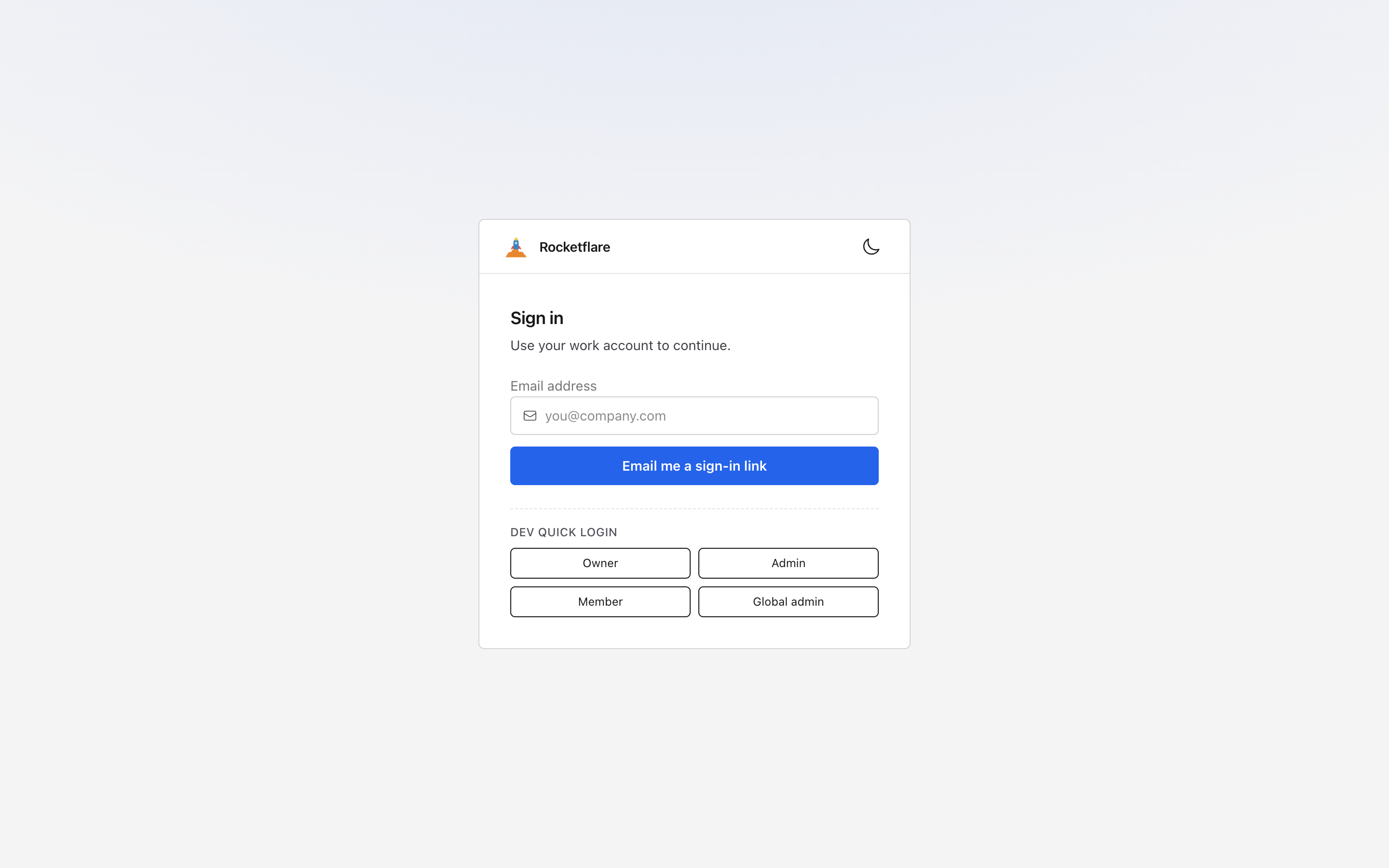
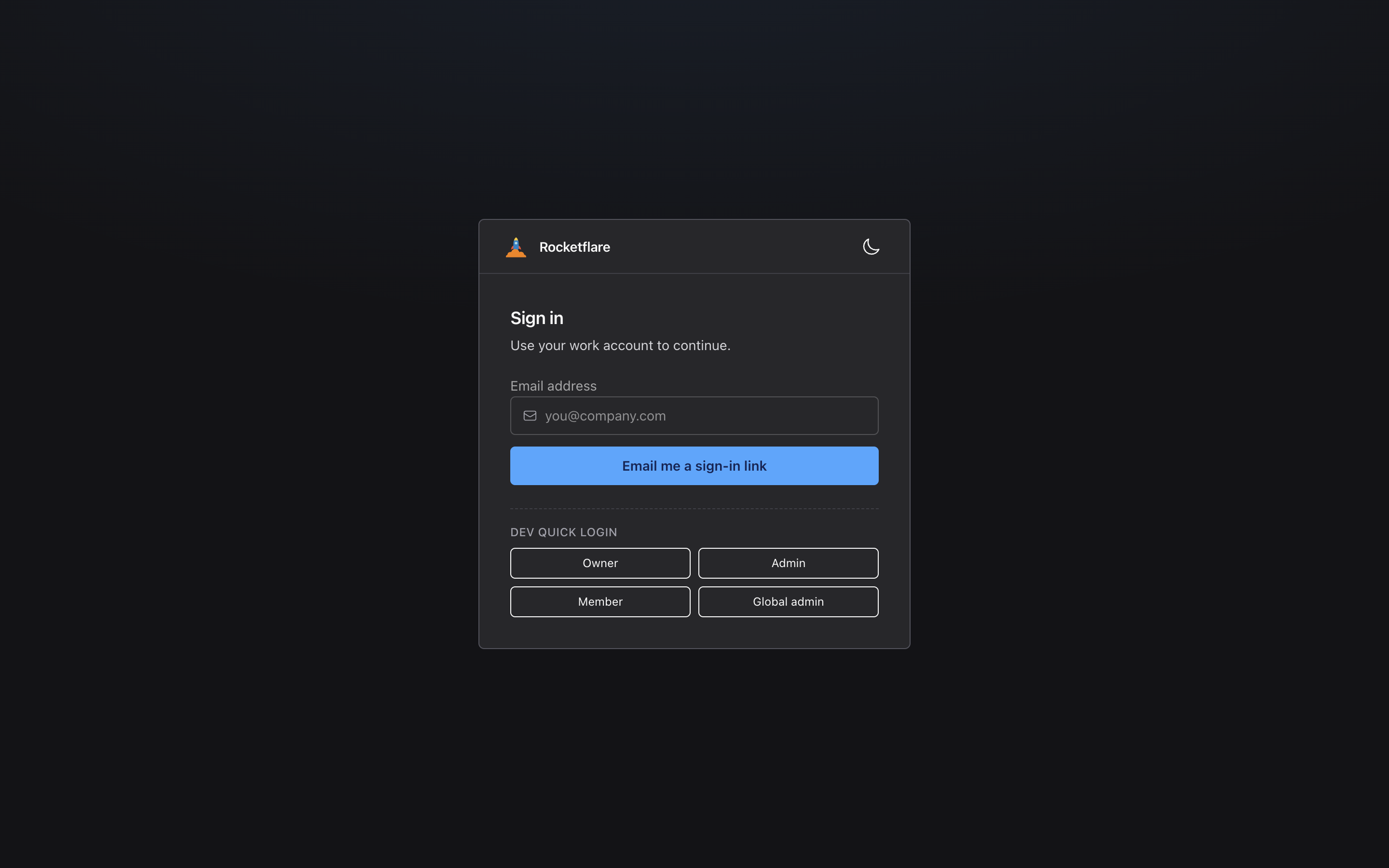
Sign in with a link printed in your terminal
Sign in with a link printed in your terminal — or, locally, one click on a demo account. Nothing to configure: with no email service set up, the magic-link URL is logged where you started the app.
The demo accounts sign you in as an owner, an admin, a member or a global admin, so you can see every screen from each side.
Behind it → Authentication
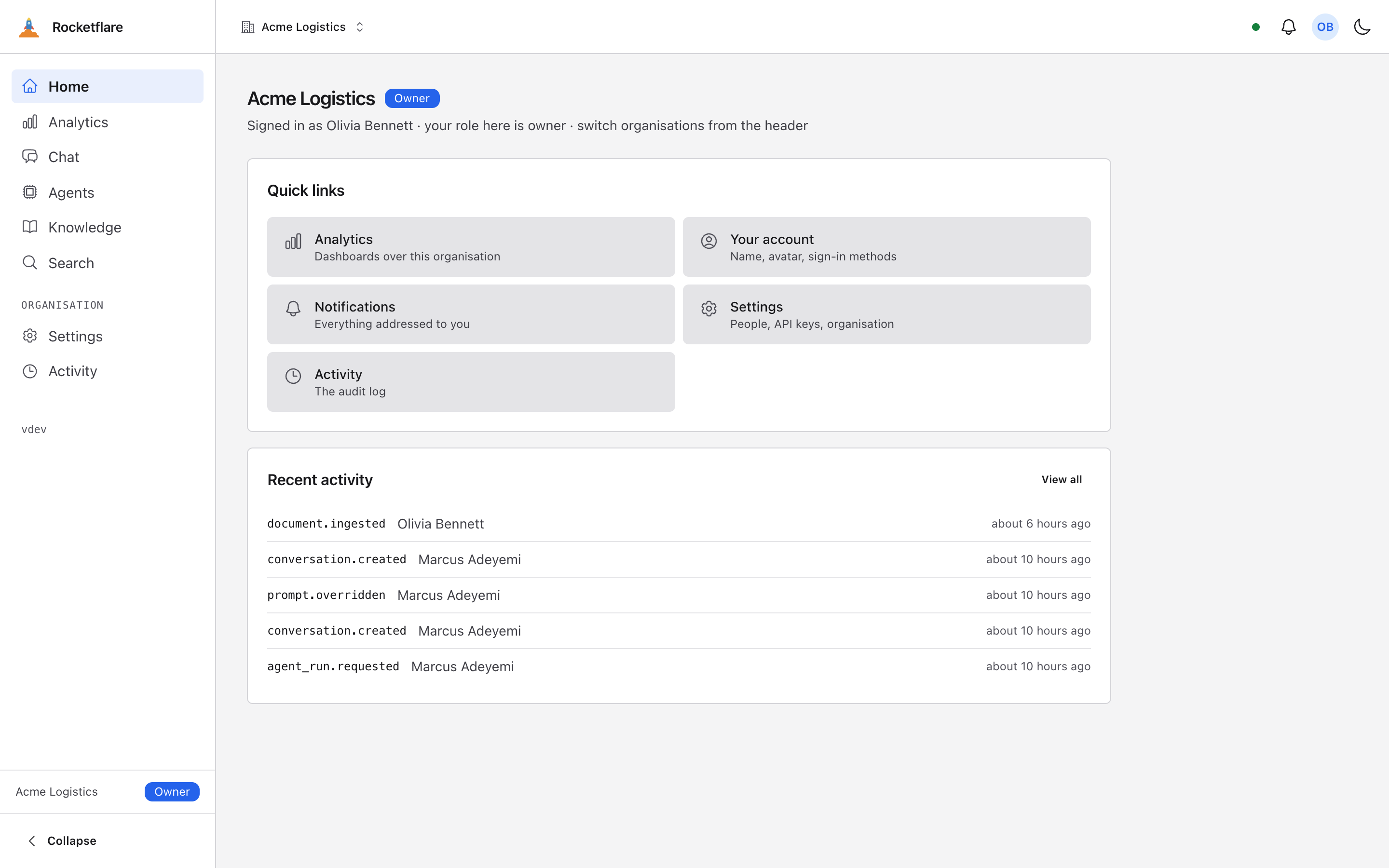
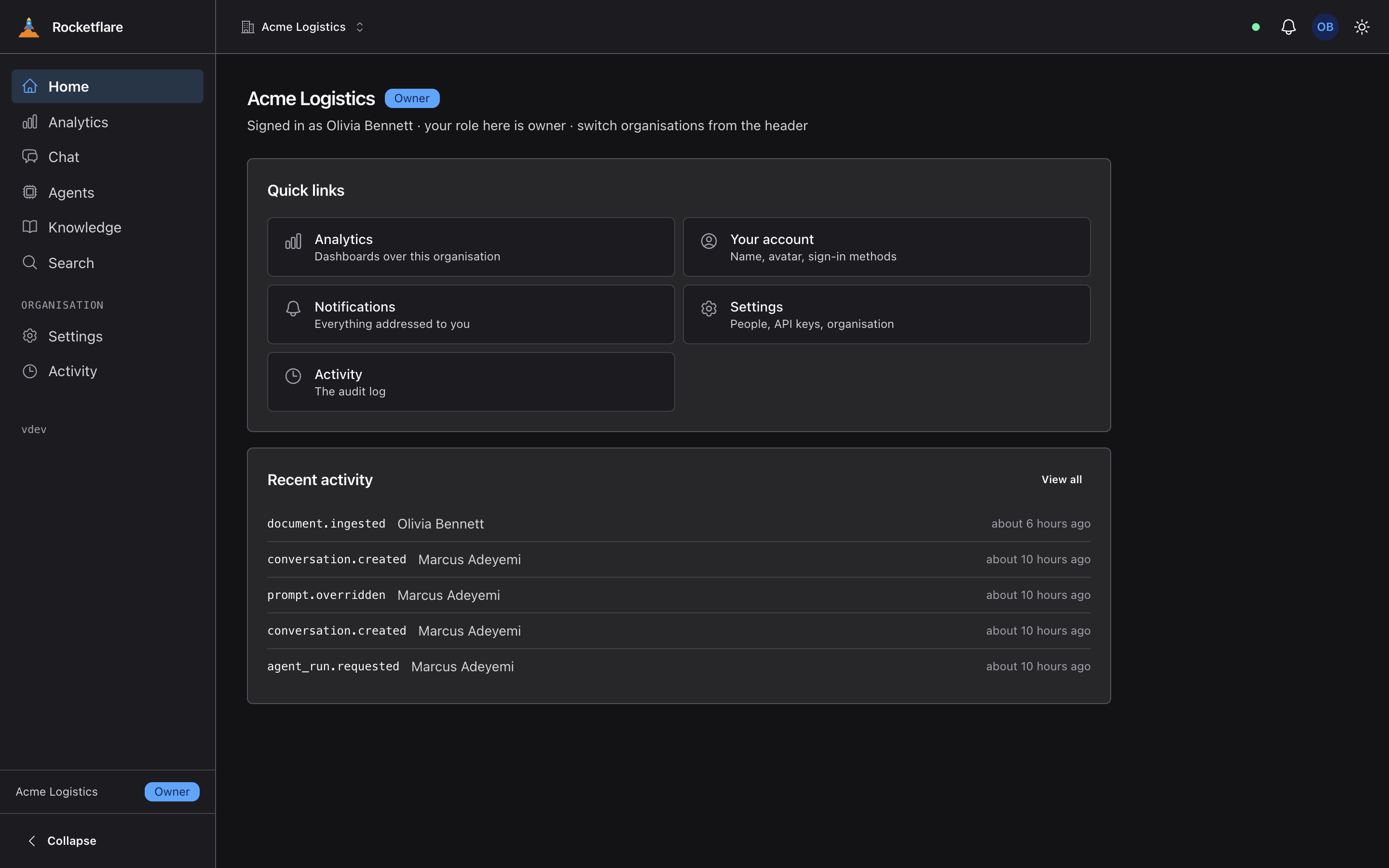
Your organisation, your role, what happened last
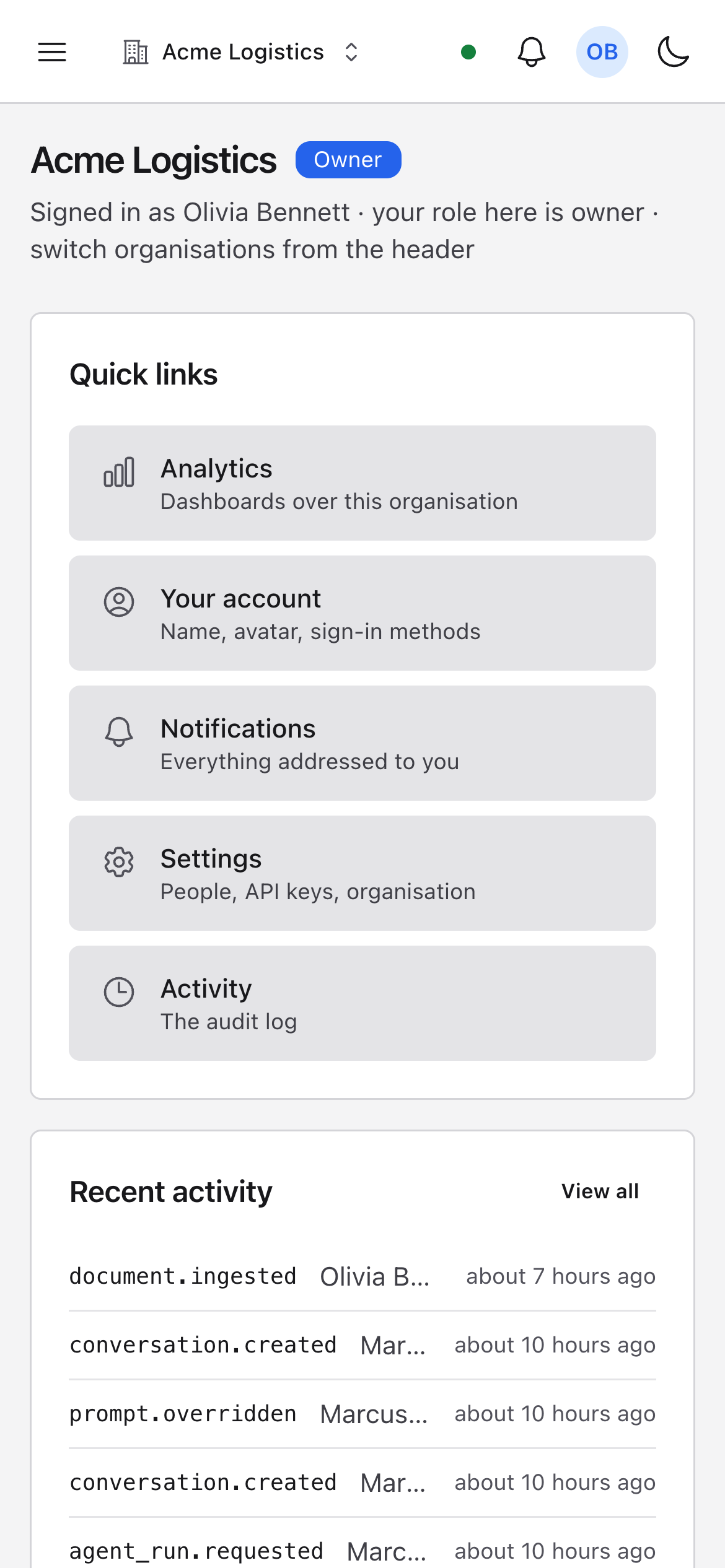
One page tells you where you are: the organisation, your role in it, and the last few things that happened. Every screen from here on belongs to that organisation — the demo one is Acme Logistics.
A person can belong to several organisations and switch between them; a deployment that only ever needs one turns switching off with a setting, not a fork.
Behind it → Tenancy and access
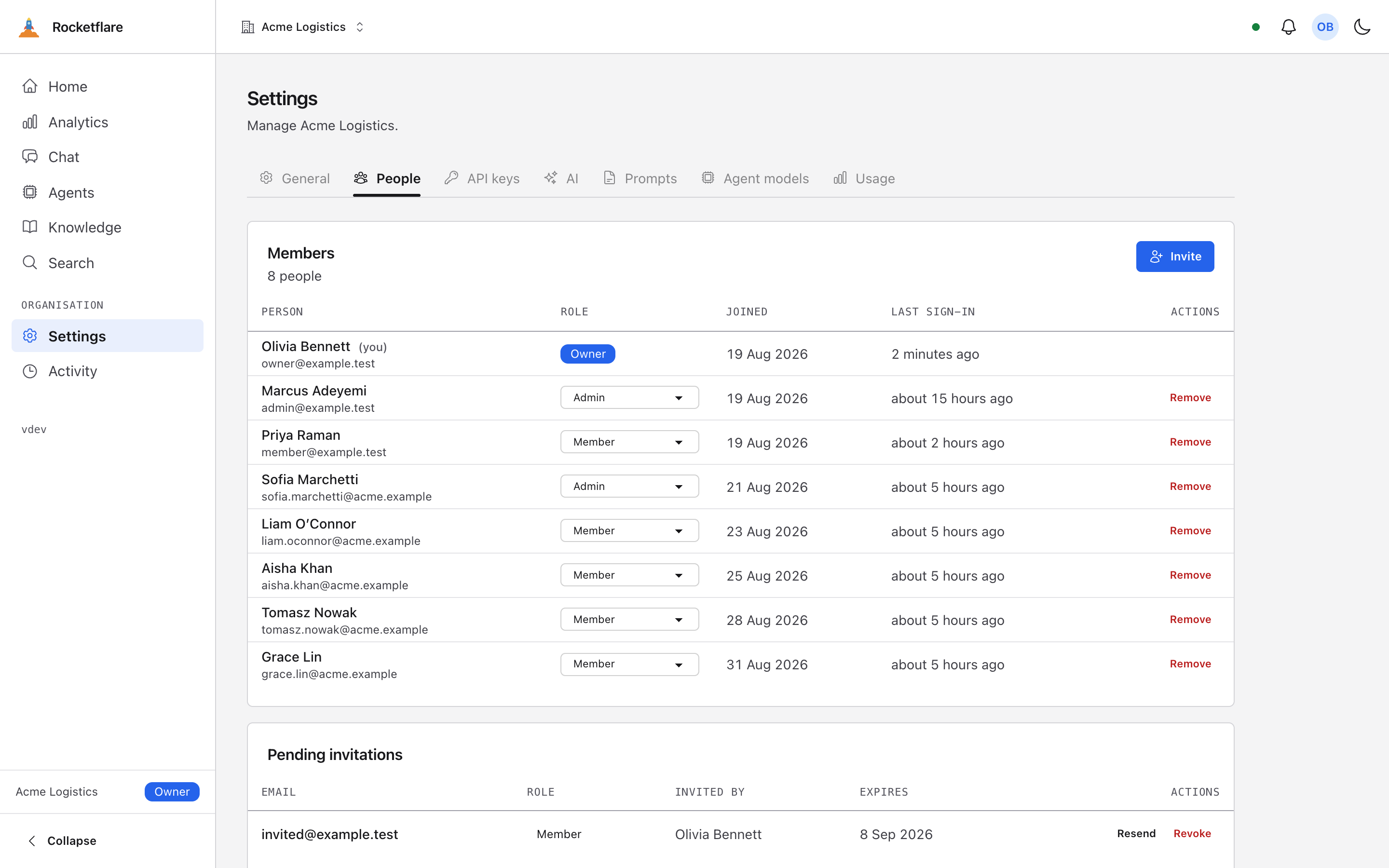
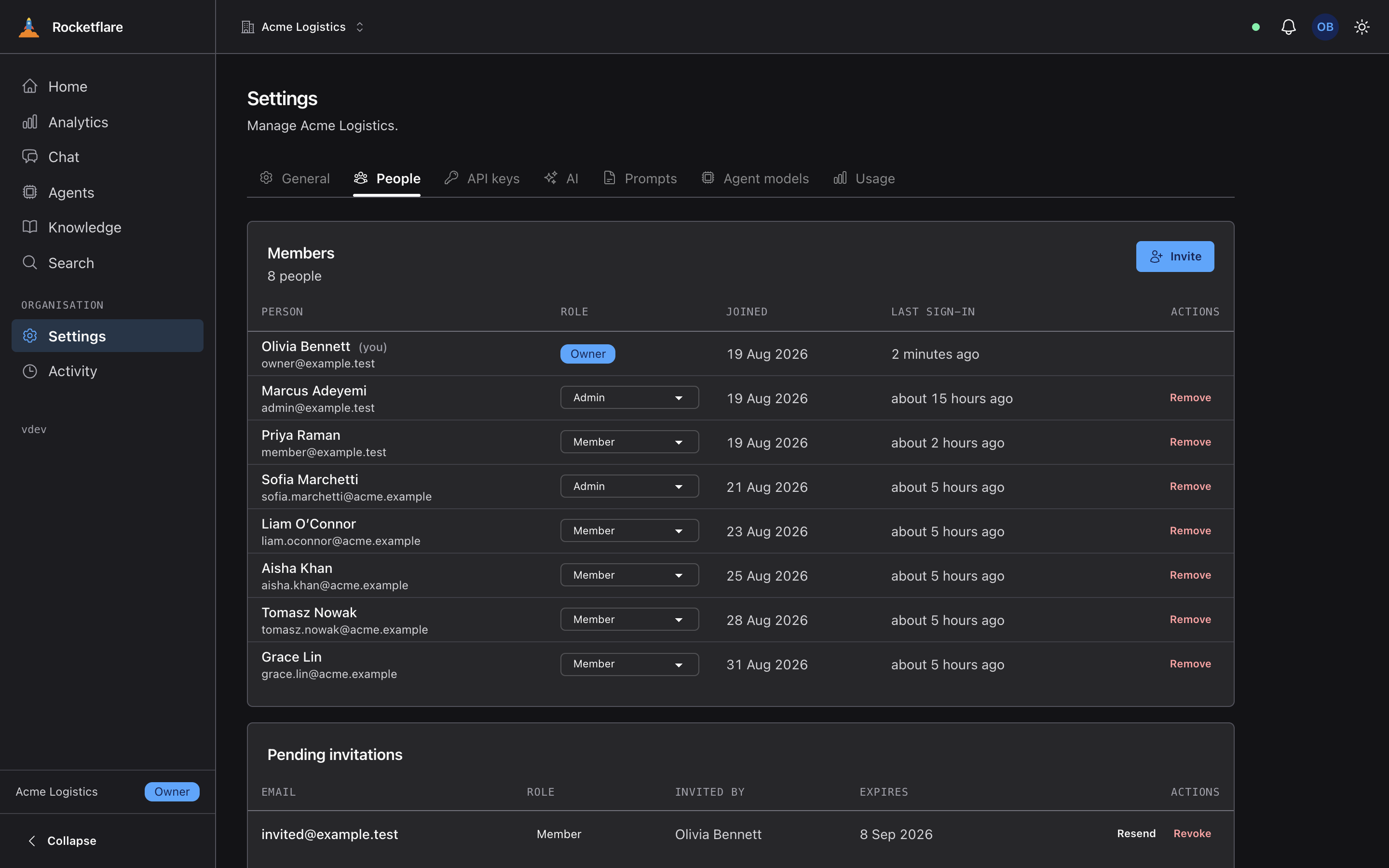
Invite someone, pick a role, change it later
Invite by email, assign owner, admin or member, and every change lands in the activity trail. The invitation email goes out from a queue, so the button answers the moment the row exists.
Open the page in a second browser and it refreshes live when the invitation is accepted — the database is the truth, the socket is only a nudge.
Behind it → Tenancy and accessBackground work and realtime
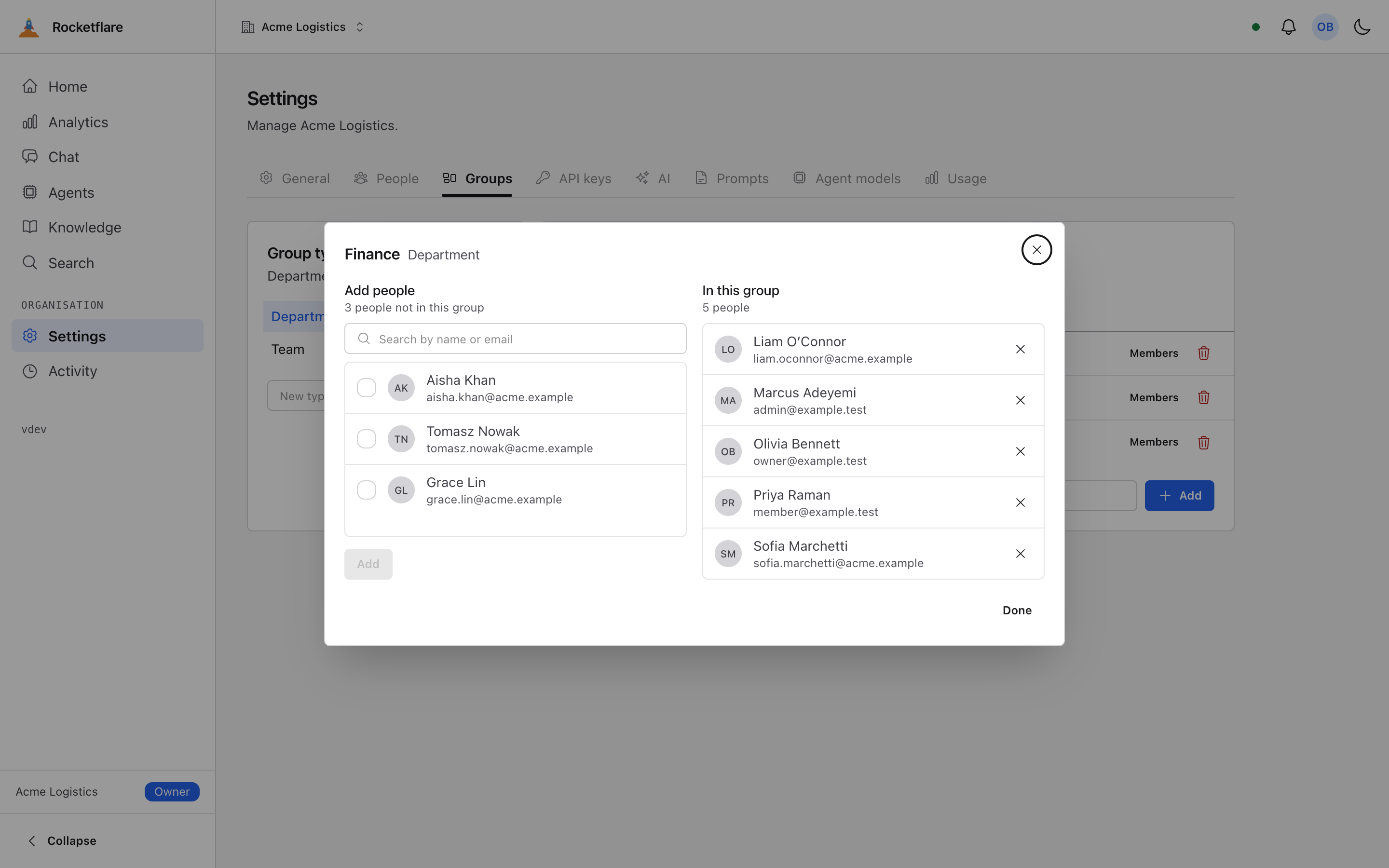
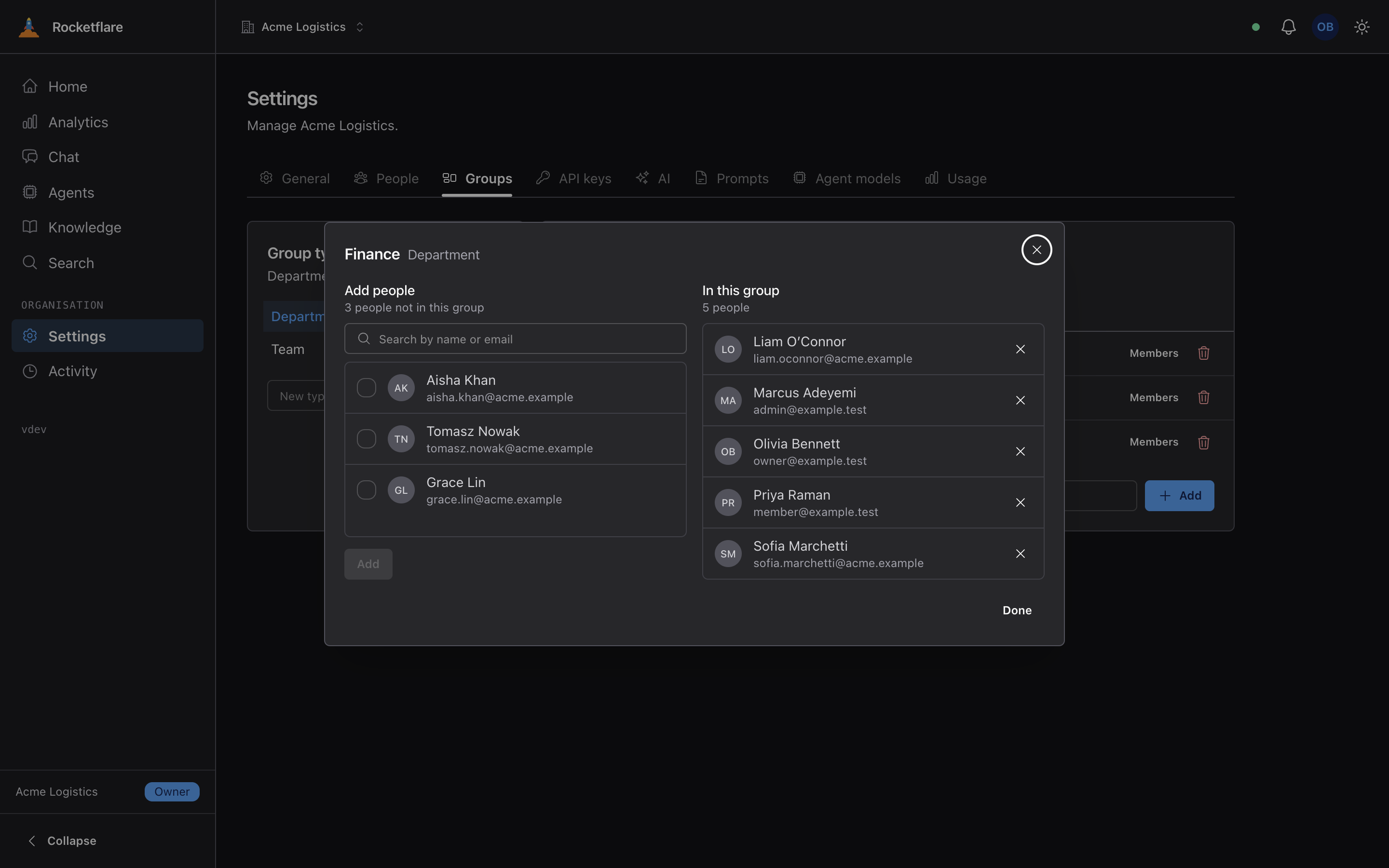
Departments, regions, clients — and what each can see
An organisation can declare group types — Department, Region, Client — each holding groups, each holding people. Membership then decides who may read a knowledge document or a dashboard, with no second permission system to keep in step.
It stays out of the way until somebody uses it: every document and every dashboard starts visible to the whole organisation, so an app that never creates a group type behaves exactly as it did before.
Behind it → Tenancy and access
AI works on day one, with no key
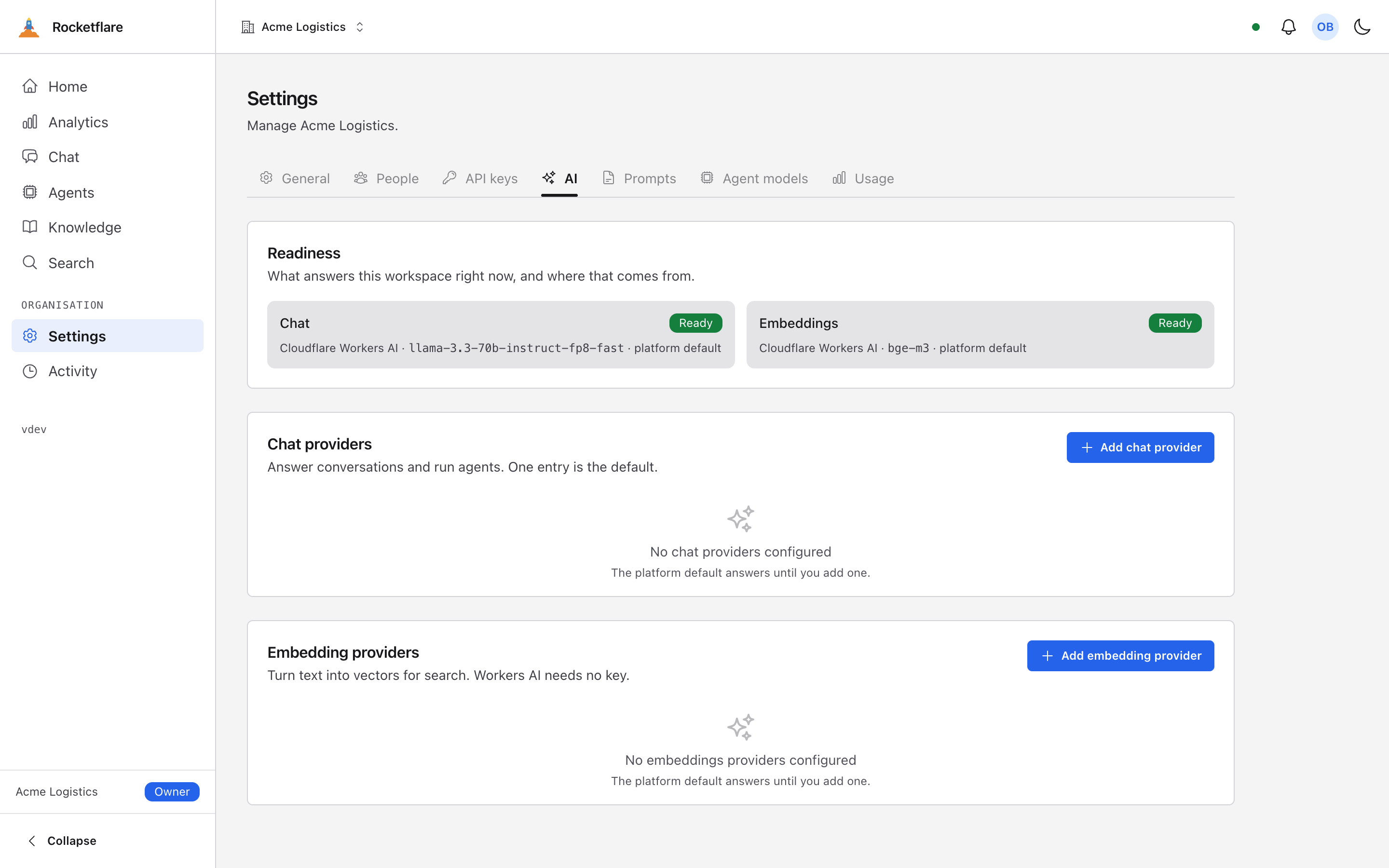
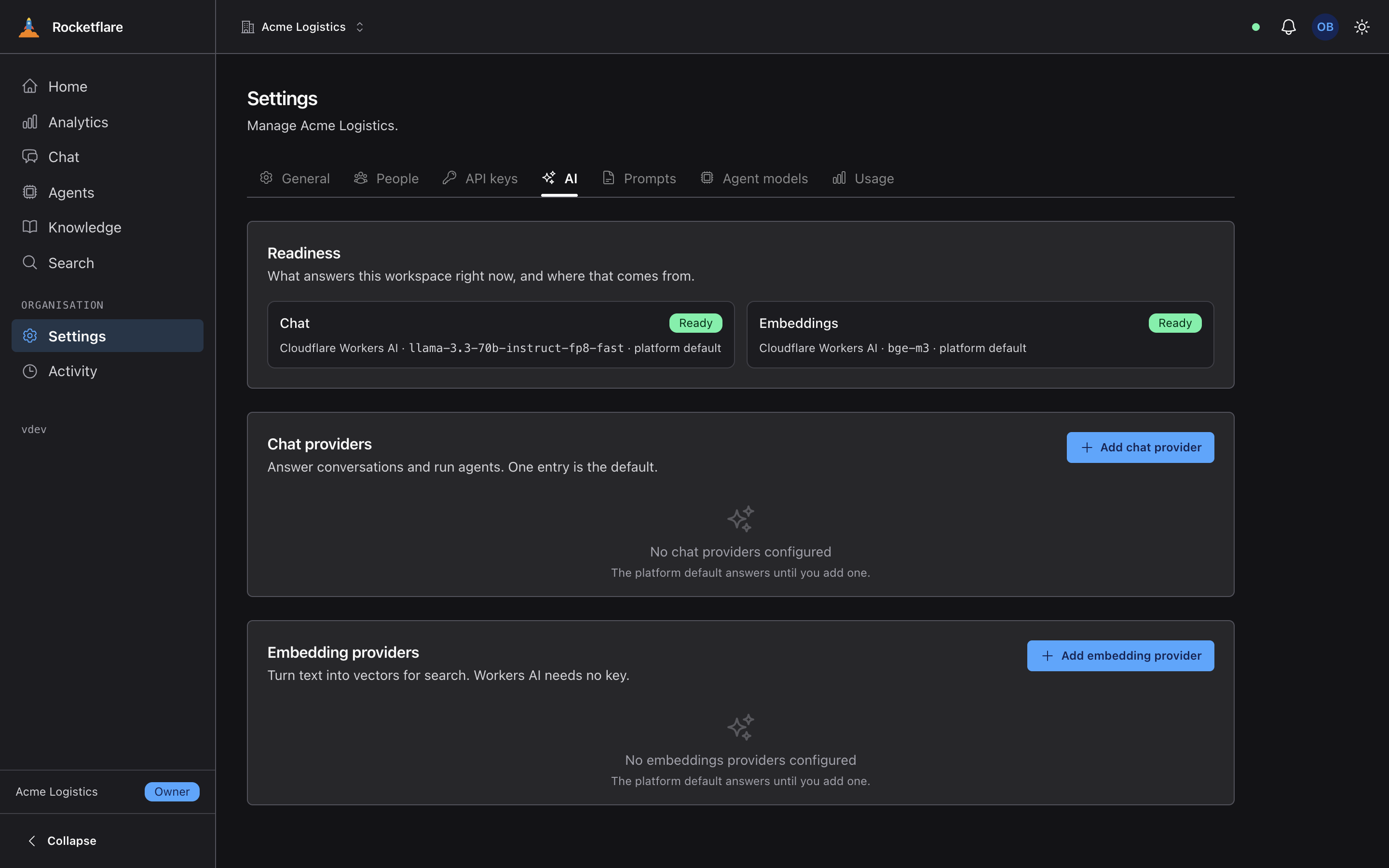
Chat, agents and search are ready on a fresh workspace with nothing configured: Workers AI is the floor. The settings page shows exactly which model will answer and where that choice came from.
Add an Anthropic key, or let each organisation bring its own provider, and it ranks above the floor — test the connection before you save.
Behind it → The AI layer
Ask a question, watch the answer stream in
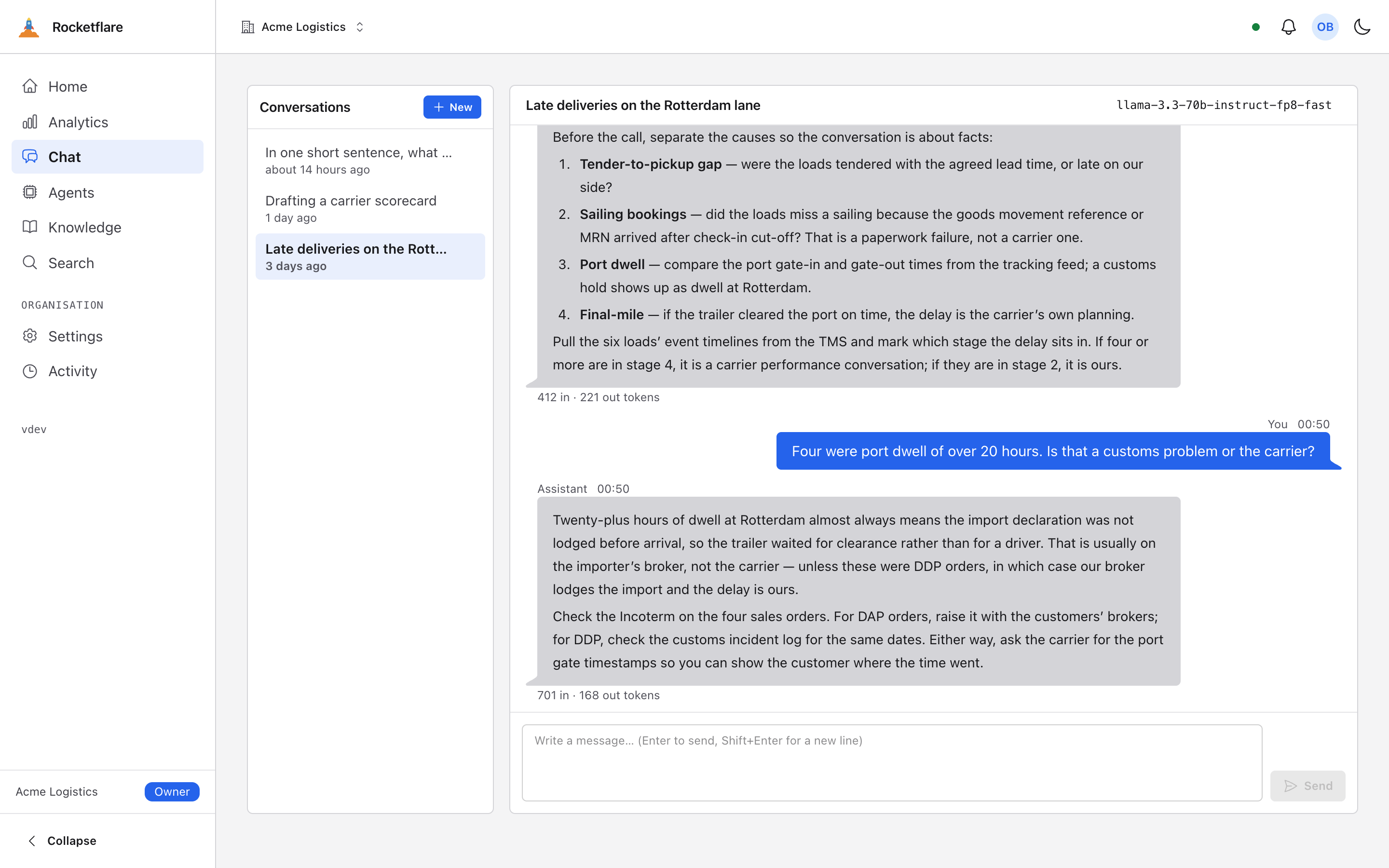
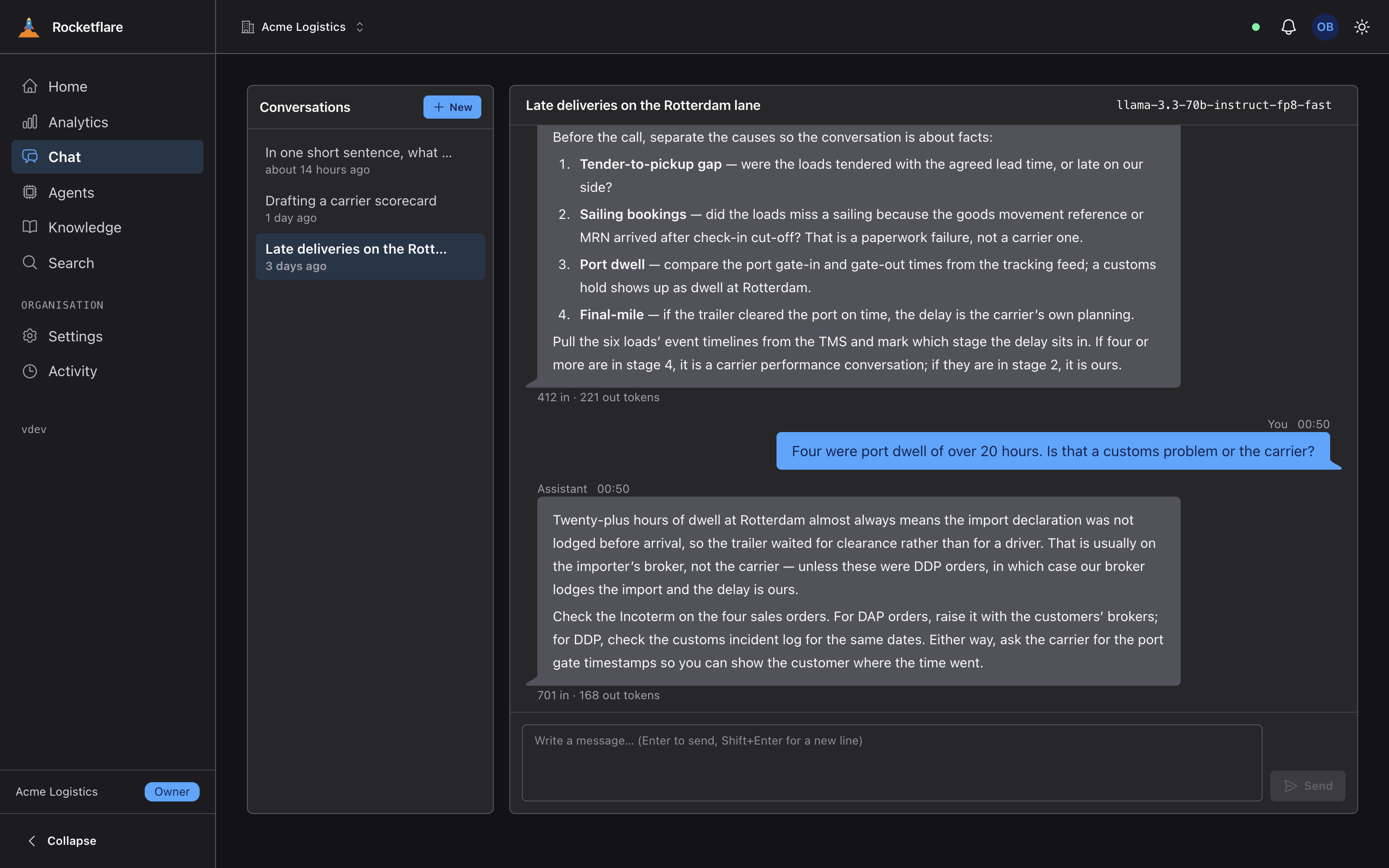
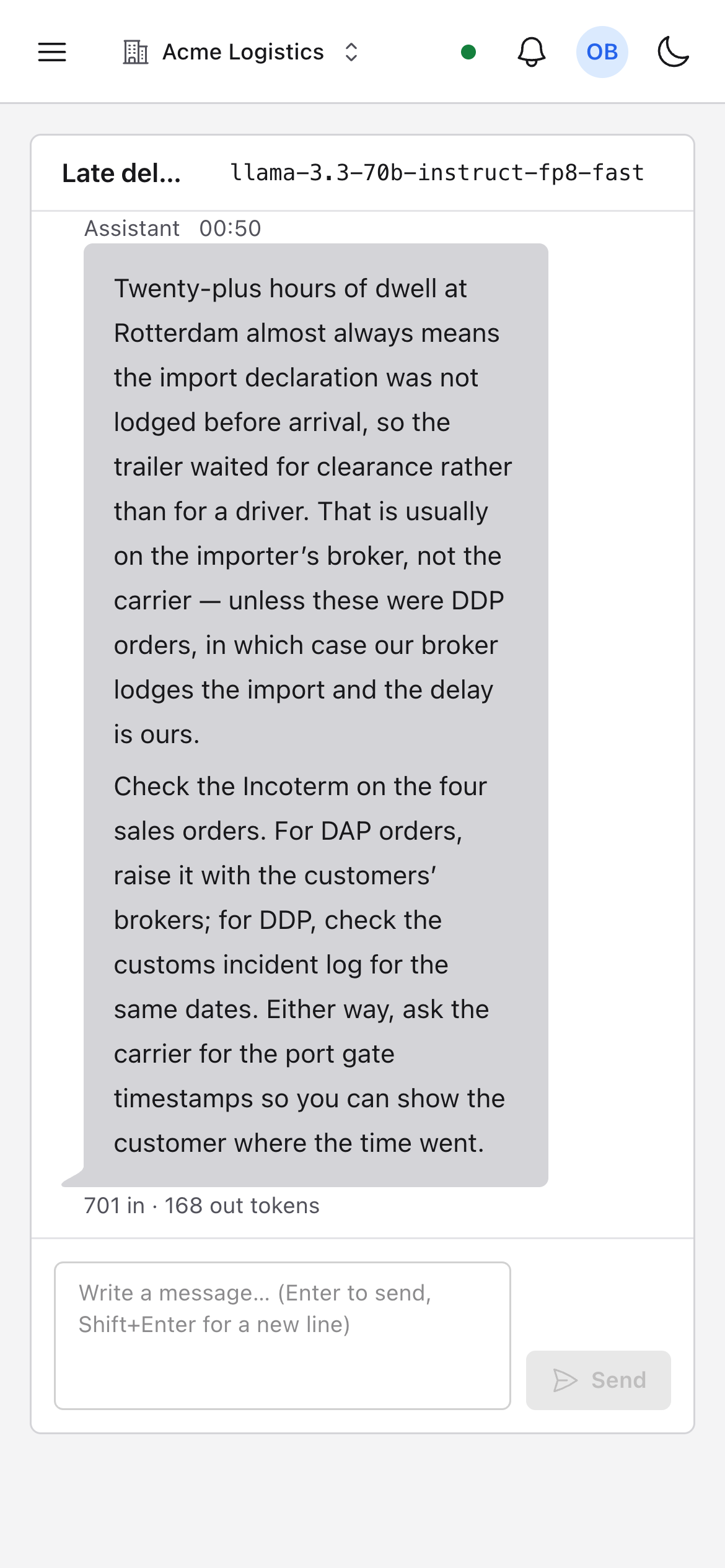
The reply streams in as it is written, the thread is saved, and each turn shows what it cost in tokens. Come back tomorrow and the conversation is still there.
Threads are private to the person who started them — an admin in the same organisation cannot open yours.
Behind it → The AI layer
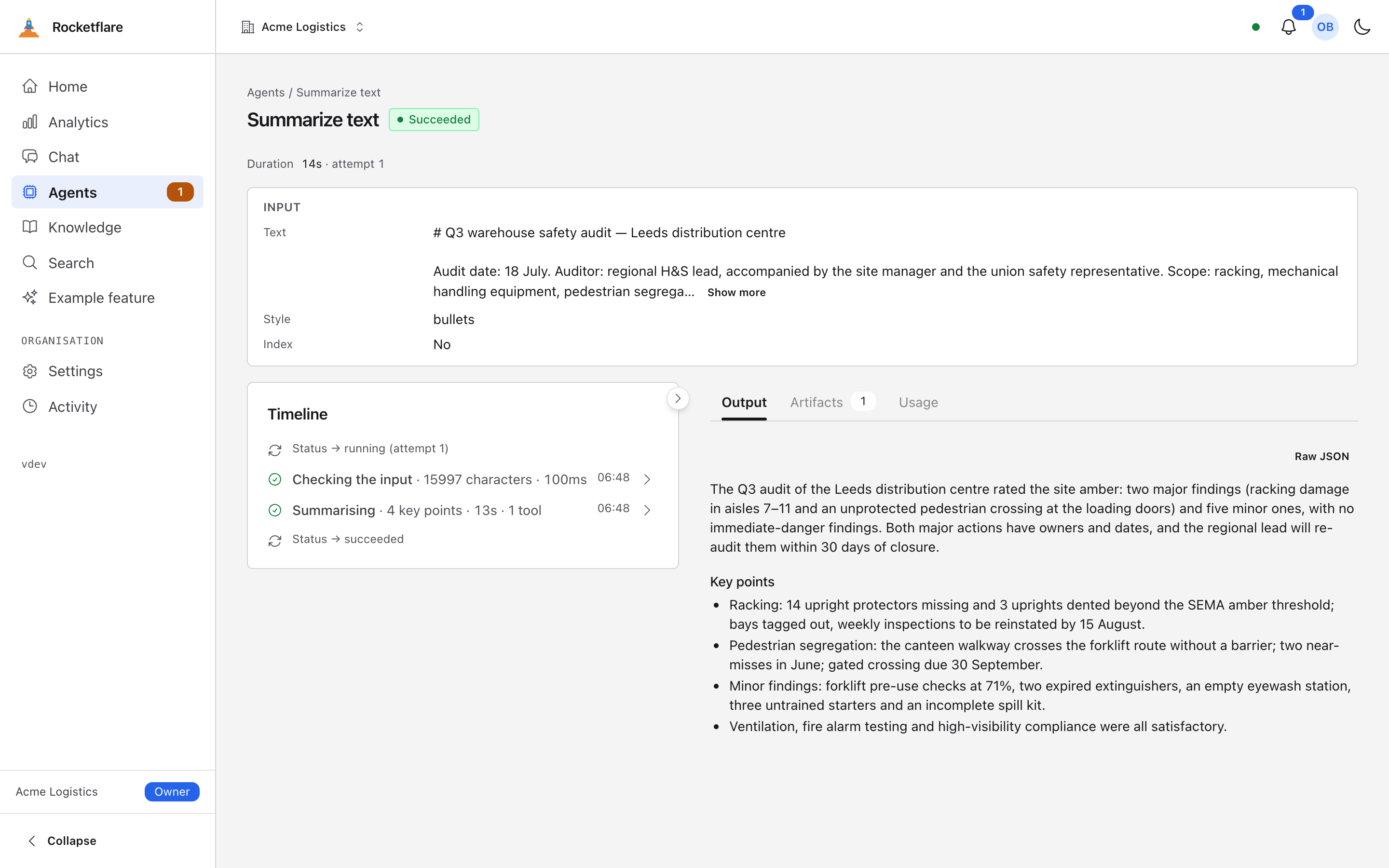
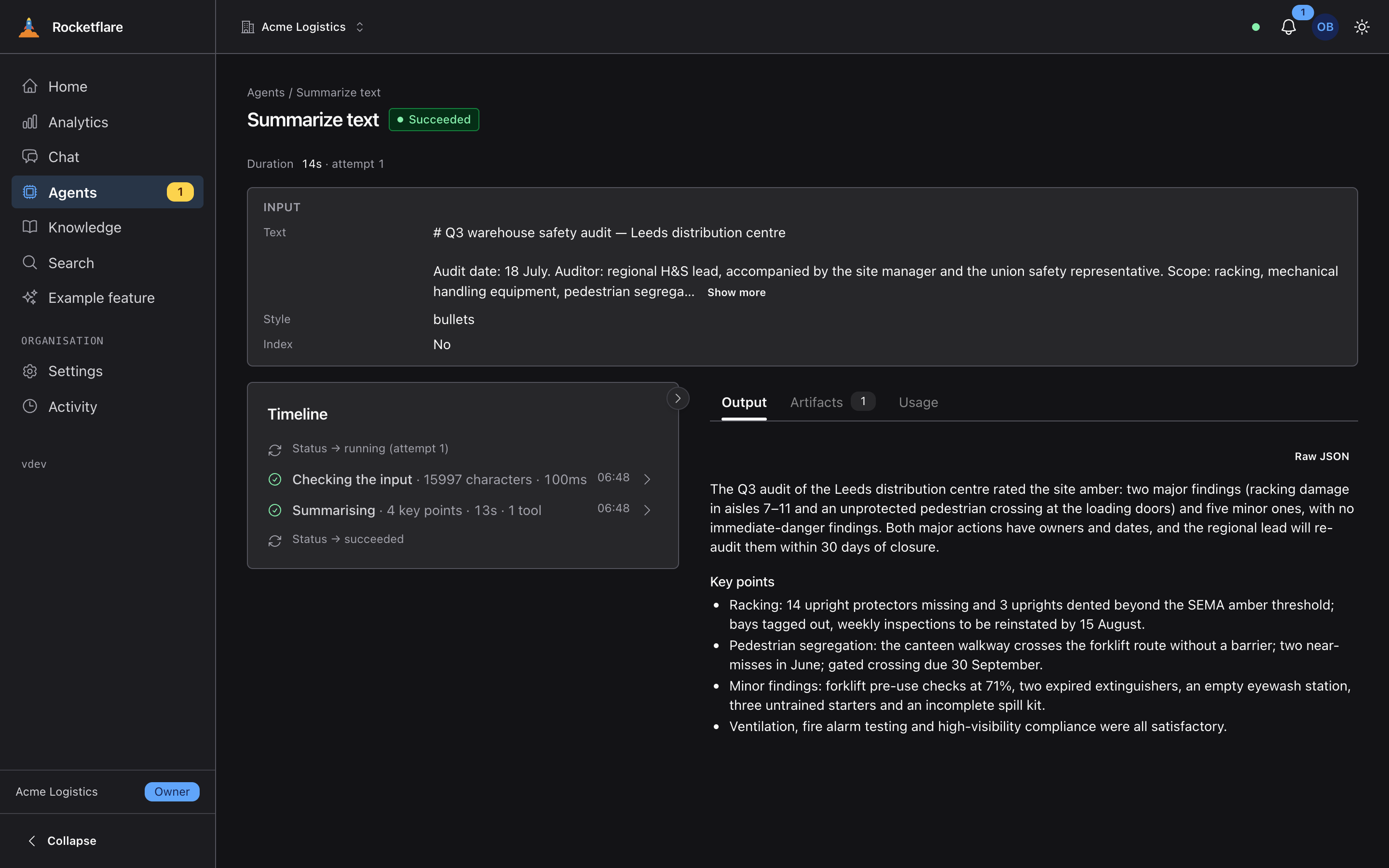
An agent is a run you can watch
Start an agent and it gets a page of its own — every step on a timeline that fills as it happens, not on a refresh. This one is summarize-text, the kit’s single-call example: its answer is checked against a schema before it is stored, and the artifacts it produced are listed beside it.
A run that stalls can be cancelled; a second request while one is already running for the organisation gets that run back instead of starting another.
Behind it → Background work and realtime
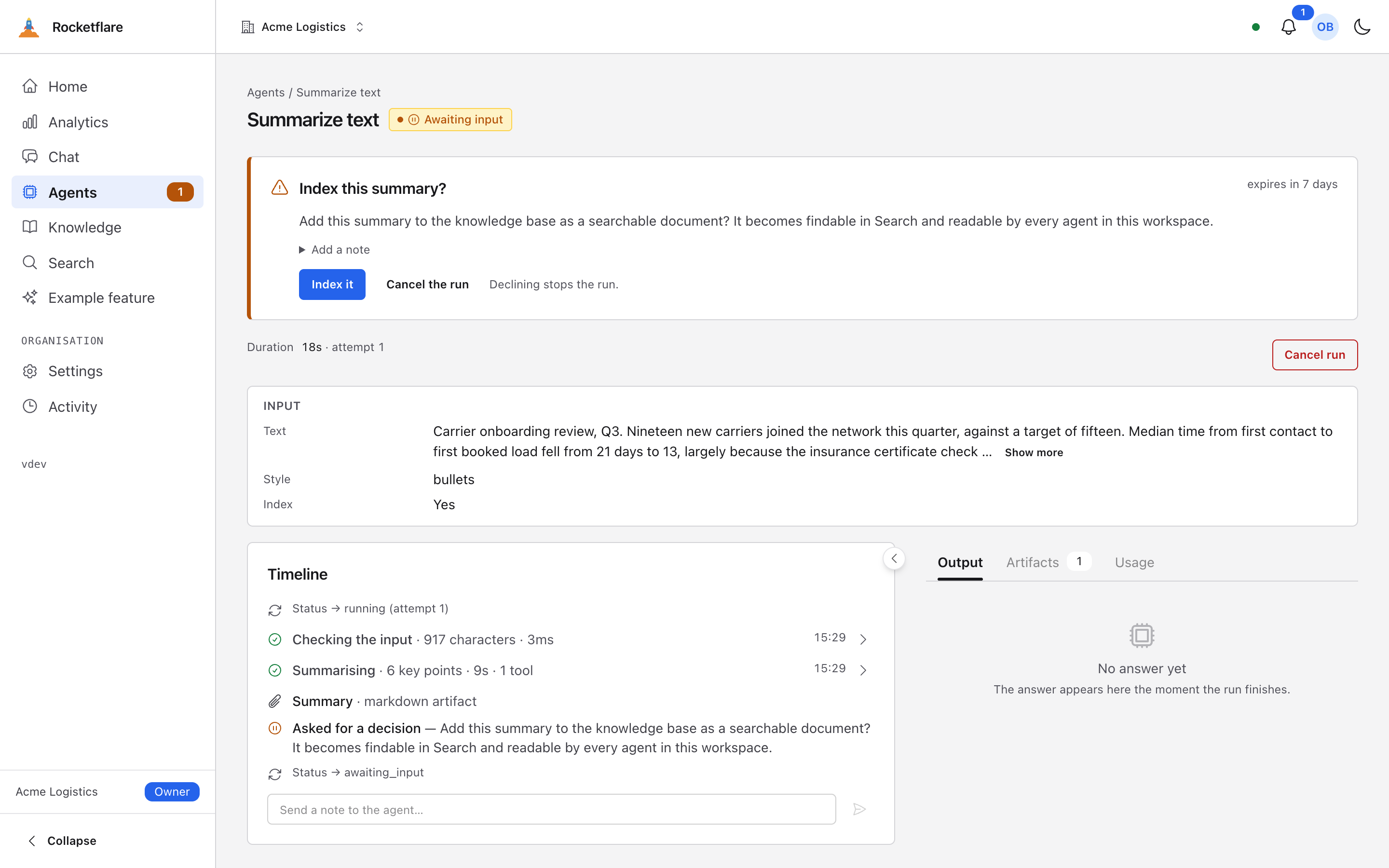
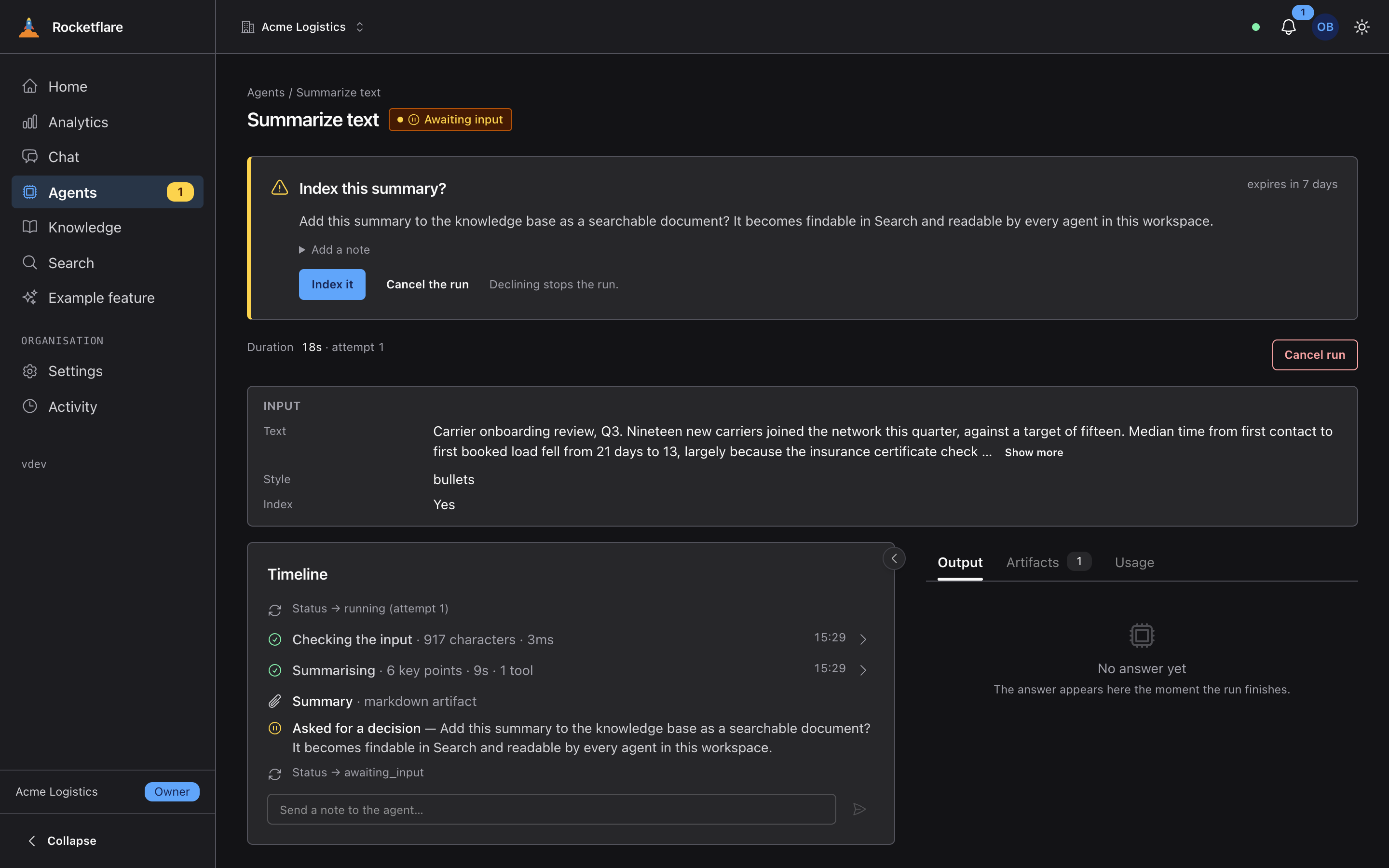
An agent that stops and asks you first
An agent can pause mid-run and wait for a person — approve, choose, or fill in a form — then carry on from where it stopped. The run suspends durably: it costs nothing while it waits, survives a deploy, and holds its place for as long as you give it.
Here summarize-text has written its summary and is asking before it puts it in the knowledge base. Declining stops the run rather than answering it, because a refusal to act is not an answer.
Behind it → Background work and realtimeThe AI layer
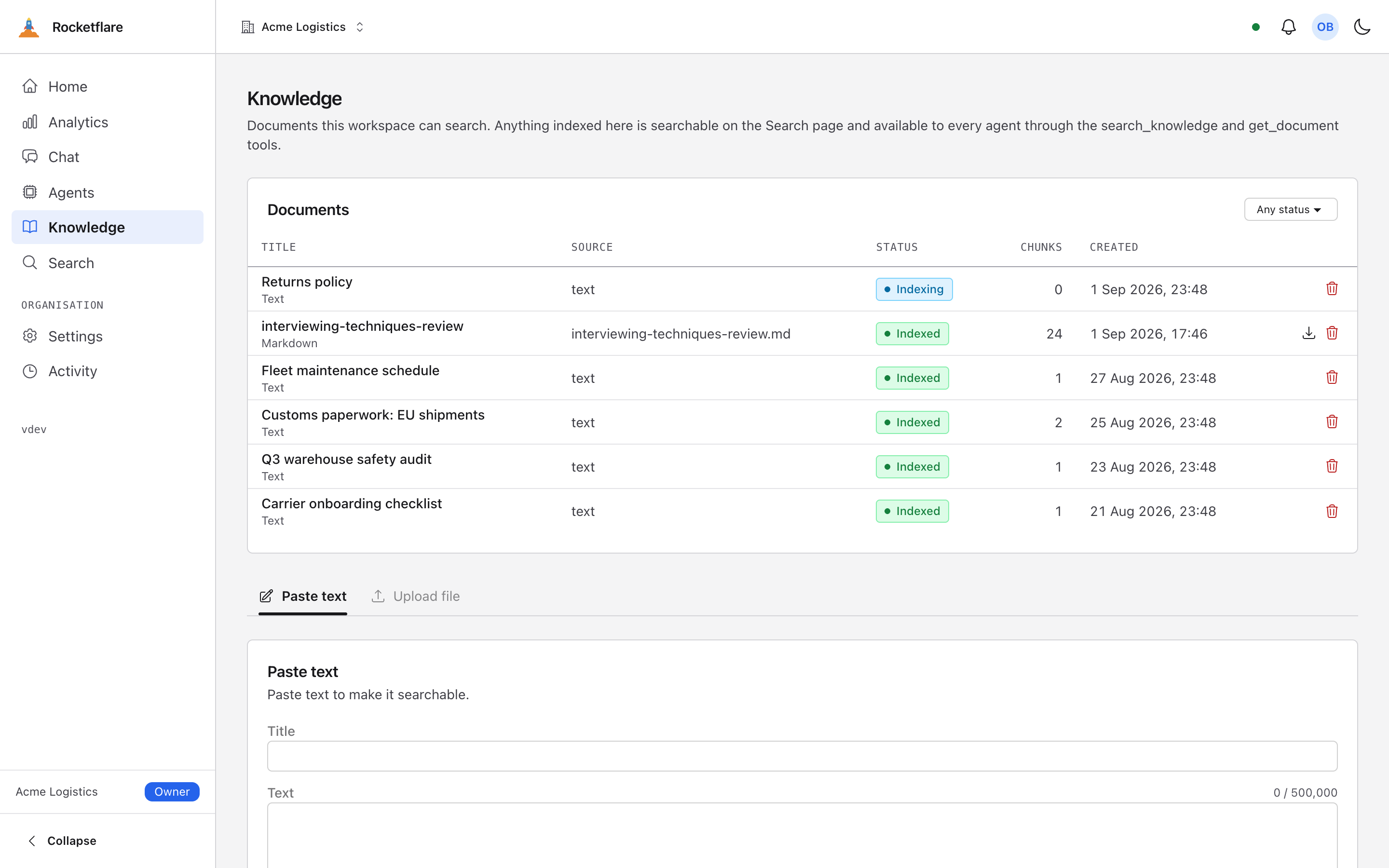
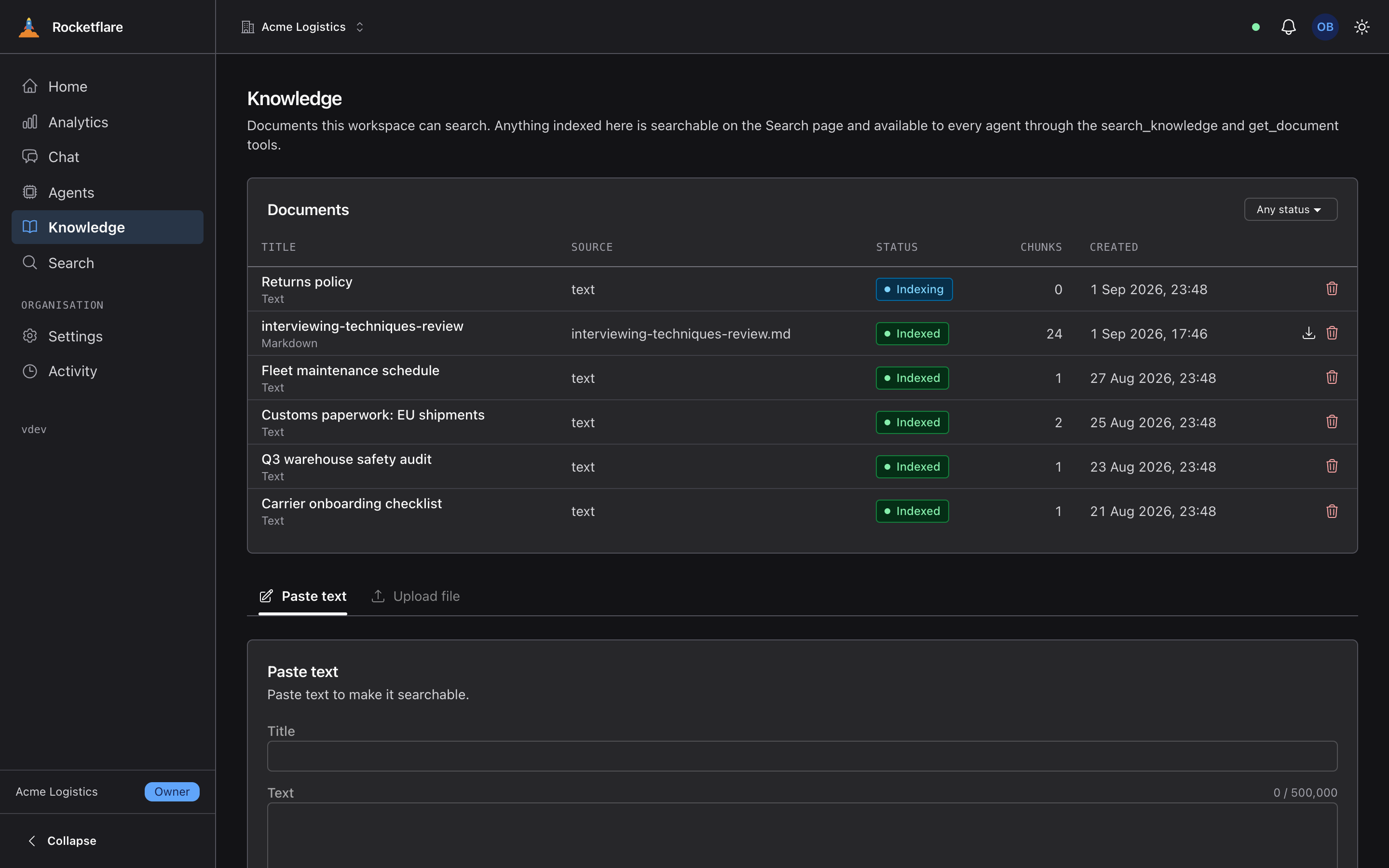
Drop in a PDF and watch it go Indexing → Indexed
Upload PDFs, Word and Excel files, HTML, Markdown or plain text — or paste text — and each row goes Indexing → Indexed within seconds. The original is kept and downloadable.
Behind the row, the text is split into passages and embedded, so search and every agent can find it. Documents belong to the organisation that uploaded them and to nobody else.
Behind it → The AI layerEmail and file storage
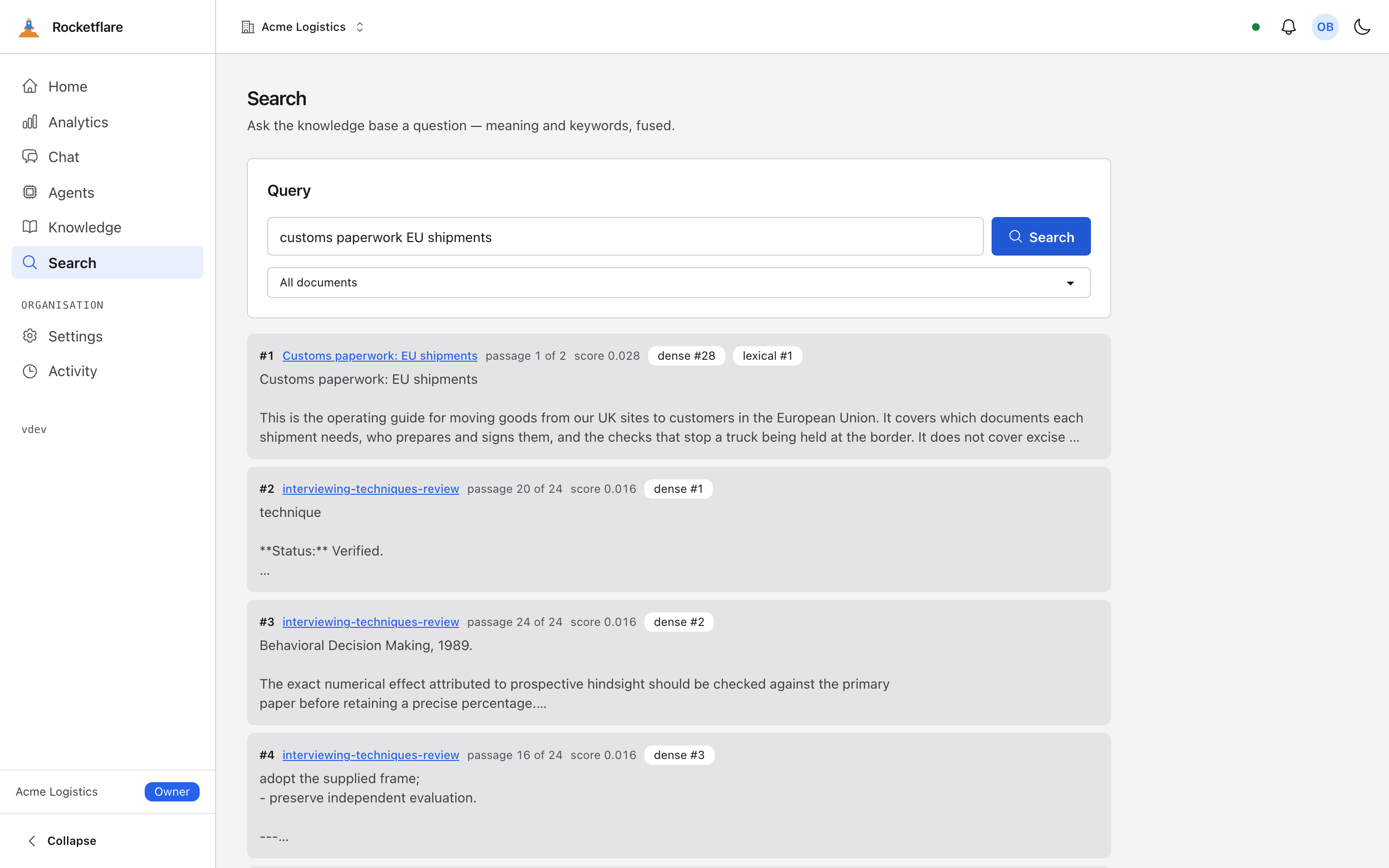
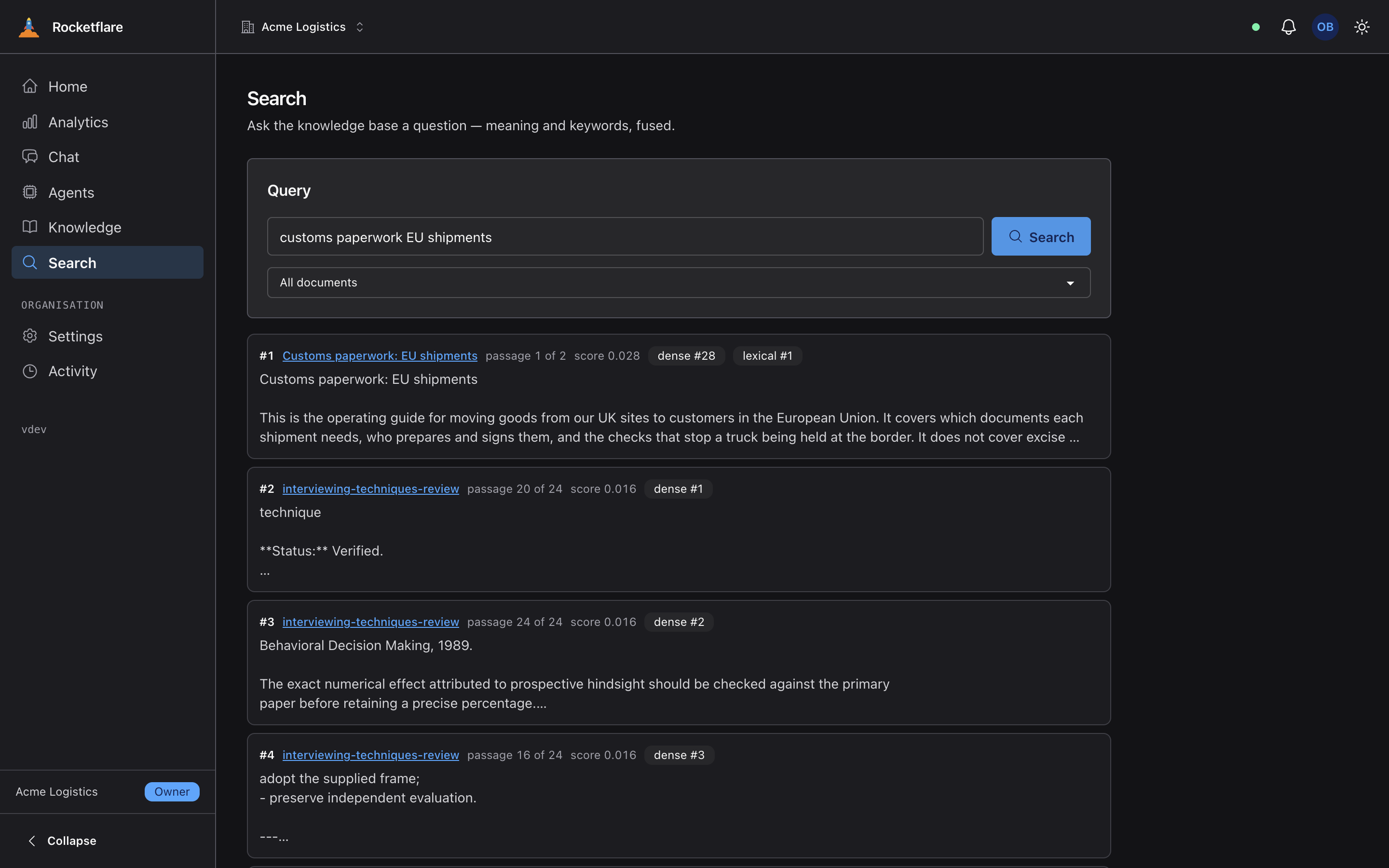
Search by meaning and by words, ranked
One box searches by meaning and by exact words at once and fuses the two rankings — every hit shows how it ranked on each. A phrase from a PDF you uploaded a minute ago is already findable.
Each passage says which document it came from and where in it, so a reader — or an agent — can jump straight to the spot.
Behind it → The AI layer
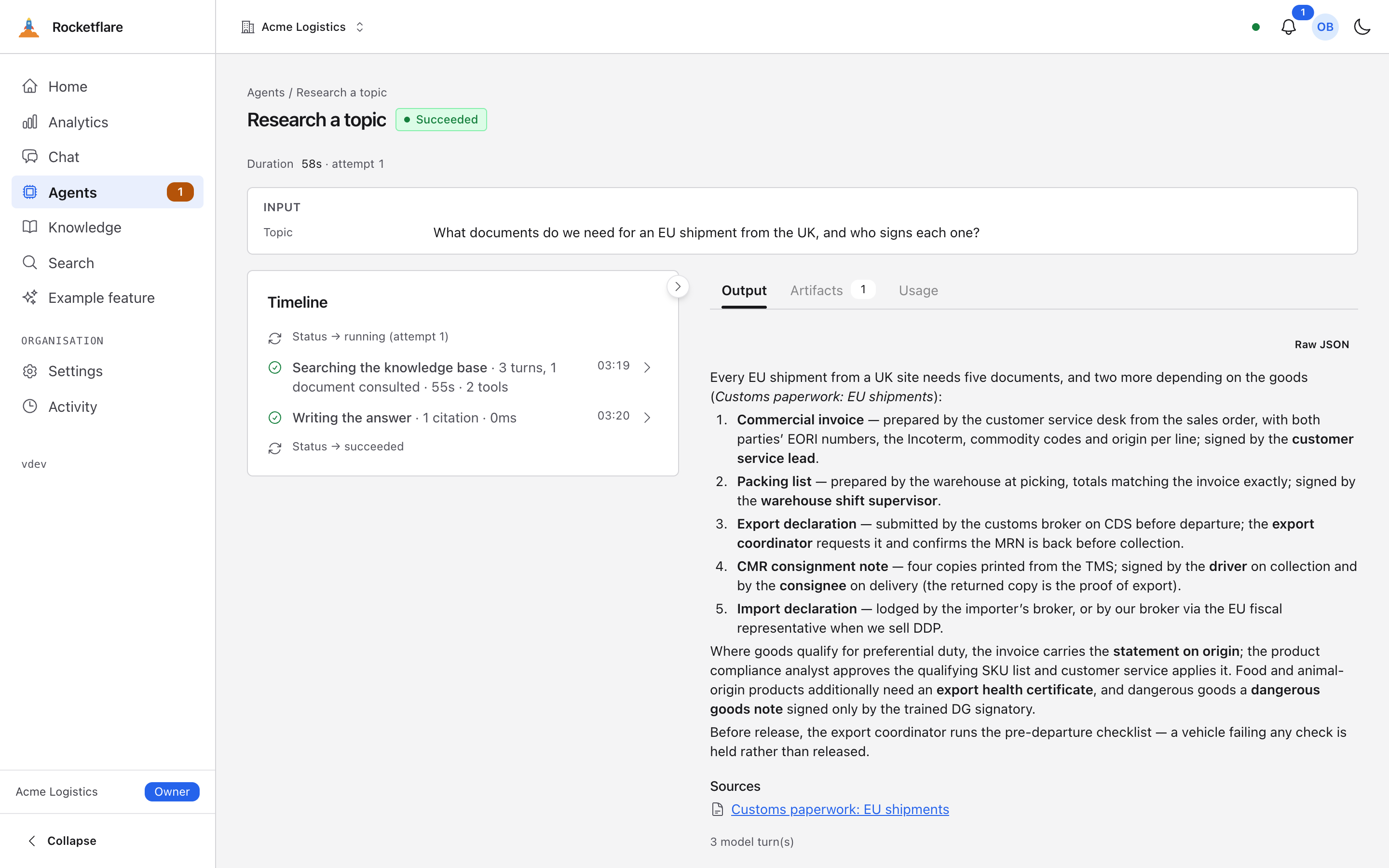
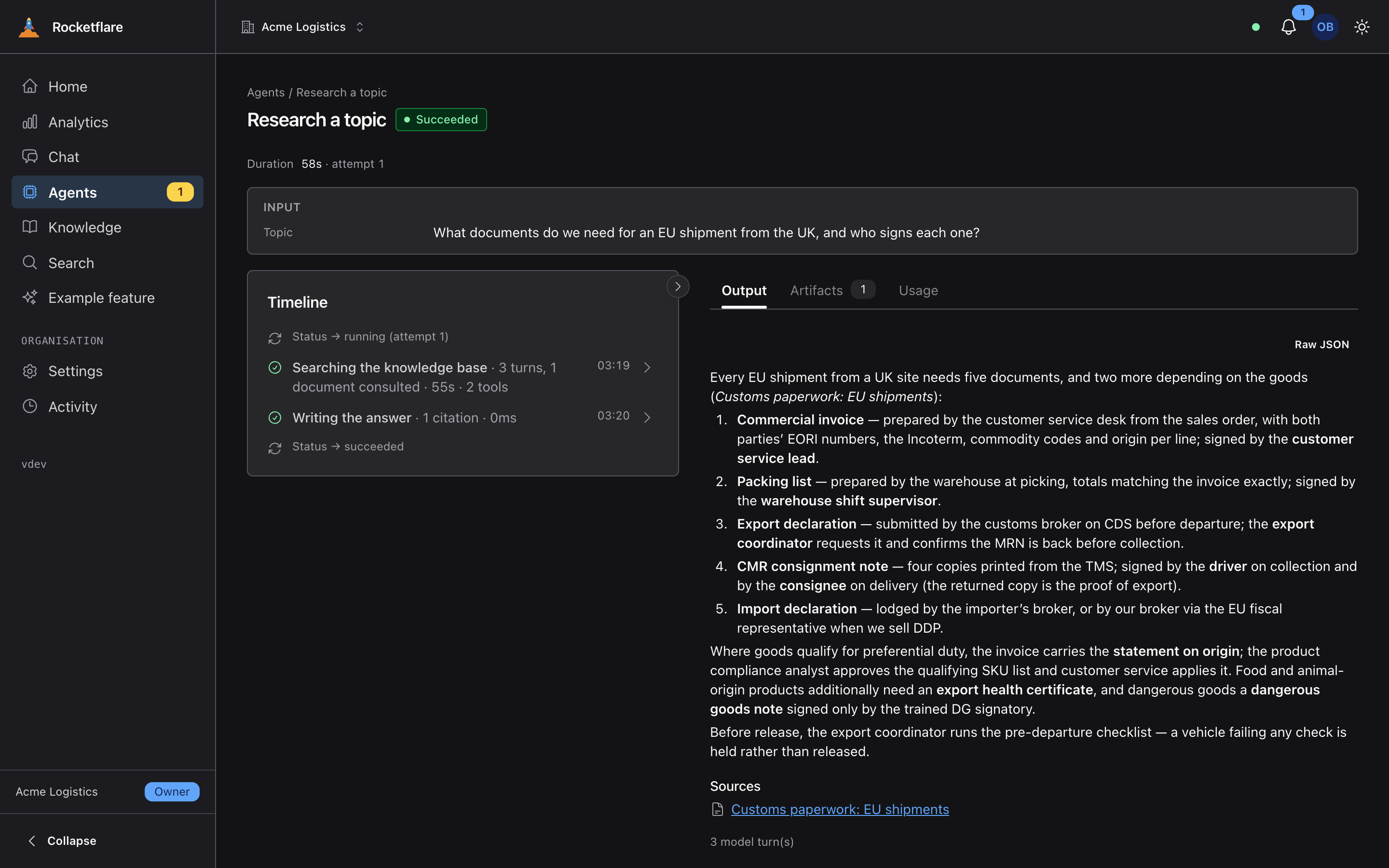
An agent that reads your documents and cites them
Ask research-topic a question and it searches the knowledge base itself, reads what it needs and answers in Markdown with sources. This is the agentic example: a tool loop over the same search you just used.
Citations are checked against the documents the tools actually returned, so an invented one is dropped rather than shown.
Behind it → The AI layer
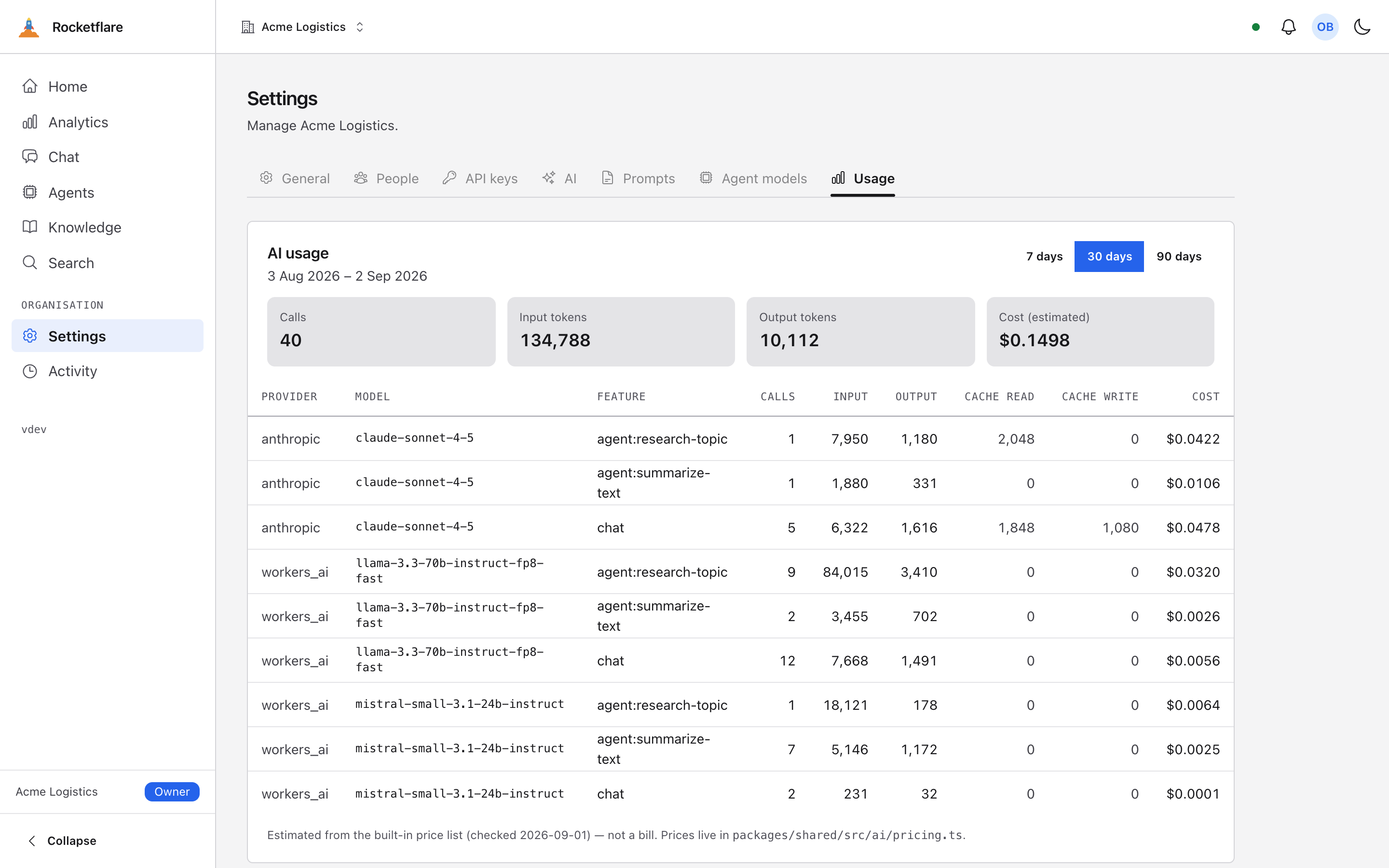
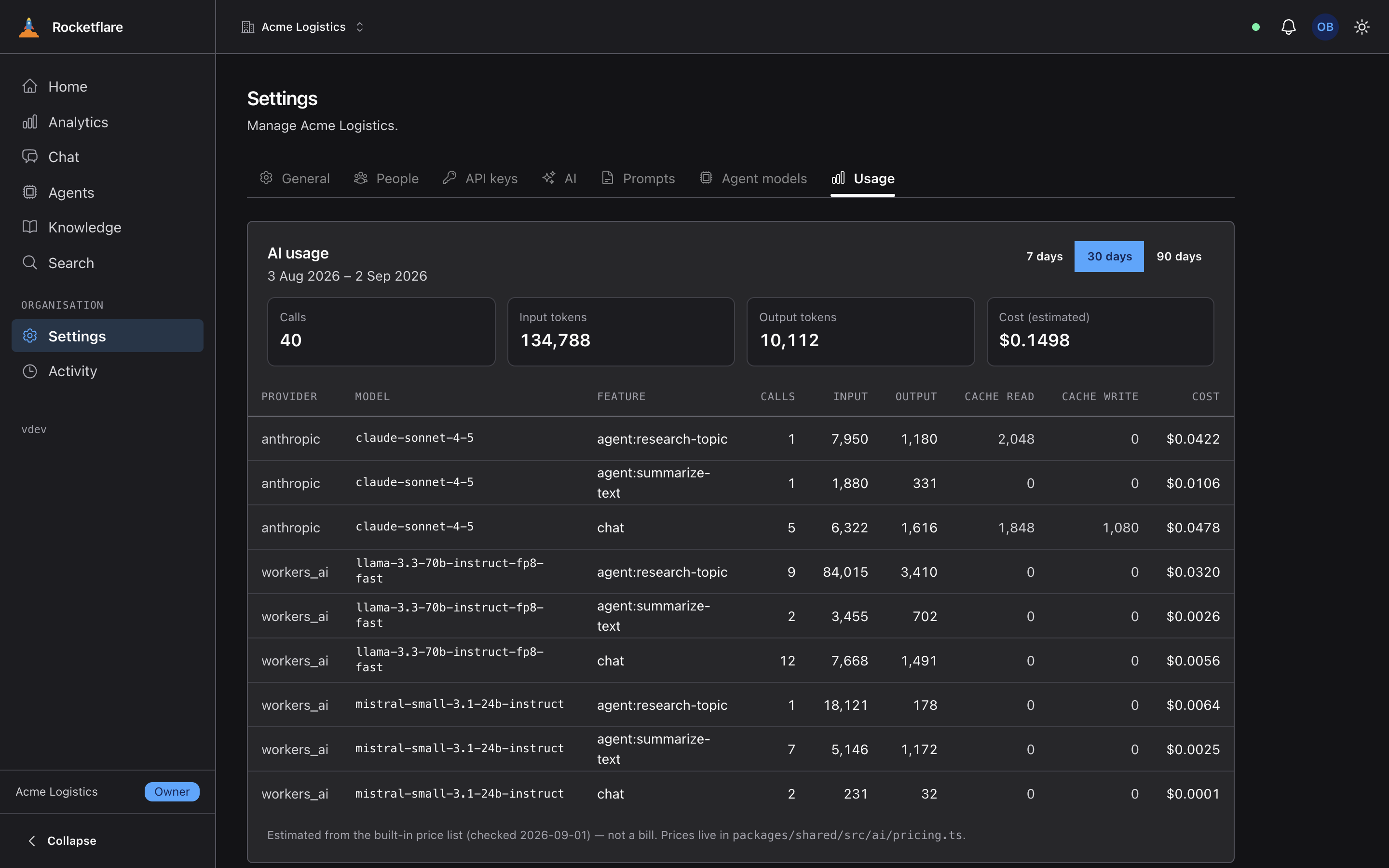
Every AI call, priced
Every model call is a row: which feature, which provider and model, how many tokens in and out, what it cost. The last thirty days add up at the top.
Prices live in one table in the repo and are frozen onto each row when it is written; a model the table does not know is counted as unpriced, never guessed.
Behind it → The AI layer
Every run, traced — and readable from a terminal
Every chat turn, agent run and AI job is recorded as a tree of spans: each model call with its tokens and latency, each tool call with its arguments and result, each retrieval and embedding beneath the tool that asked for it. It lands in Postgres with zero configuration, so rocketflare traces show <run id> works on a laptop with no account anywhere.
The same spans are exported as vendor-neutral OpenTelemetry, using the GenAI conventions, to Langfuse, Arize Phoenix or any OTLP backend. Existing Langfuse keys keep working with no new secret. A single switch strips prompts and completions from both the export and the local store.
pnpm cli traces list --status errorStarted Trace Name Status Took Spans2026-09-25 10:02 3f9c2b1e8d4a4c6b9e2f1a2b3c4d5e6f invoke_agent research-topic error 14.2s 9pnpm cli traces show 3f9c2b1e-8d4a-4c6b-9e2f-1a2b3c4d5e6finvoke_agent research-topic 14.2s ERROR The agent asked for input too many times └ execute#0 13.9s └ chat claude-sonnet-5 1840→212 tok 2.1s └ execute_tool search_knowledge 0.4s in: {"query":"volcano monitoring"} └ retrieval search_chunks 0.3s └ embeddings @cf/baai/bge-m3 0.1s └ chat claude-sonnet-5 4210→96 tok 3.4sBehind it → The AI layer
Know whether a prompt change made the answers worse
Changing a prompt or switching models should not be a matter of trying three questions and hoping. pnpm eval runs suites of cases against the real chat route and the real agent runtime, in-process, each case in an organisation of its own with only the documents it brought. It prints a score, the tokens, the cost and the time for every case.
Cheap checks go first: did it search, did it search in the right order, did the answer mention the refund window, does the output match its schema, did it stay under budget. What a string cannot check goes to a model judge: a rubric in plain words, whether every claim is backed by what retrieval actually returned, and whether it agrees with a reference answer. The judge goes through the kit’s own model resolver, so its calls are priced in the ledger like everything else.
Agree that a run is good and commit it as the baseline. From then on, pnpm eval --compare lists every case and judge that dropped, and exits 1. Thumbs on chat replies and agent output record what real users disliked, and rocketflare evals promote turns one of those answers into a draft case.
pnpm eval knowledge --comparesuite case avg Trajectory Contains Faithfulness Rubric tokens cost mschat · knowledge refund-window 1.00 1.00 1.00 1.00 1.00 3120 $0.0142 4210chat · knowledge greeting-no-search 1.00 1.00 — — 1.00 410 $0.0019 980chat · knowledge not-covered ✗ 0.33 0.00 — 0.00 1.00 620 $0.0031 1640chat · knowledge oncall-followup 0.95 1.00 1.00 0.90 0.90 3870 $0.0170 50204/5 passed · mean score 0.84 · 10640 tokens · $0.0481 · 16.9s of target timecompared with baseline:REGRESSIONS (drop > 0.1):chat · knowledge not-covered Trajectory 1.00 → 0.00 expected search_knowledge, got no tool callchat · knowledge not-covered Faithfulness 1.00 → 0.00 claims a 60-day window no passage supportsBehind it → The AI layer
Every organisation from one place
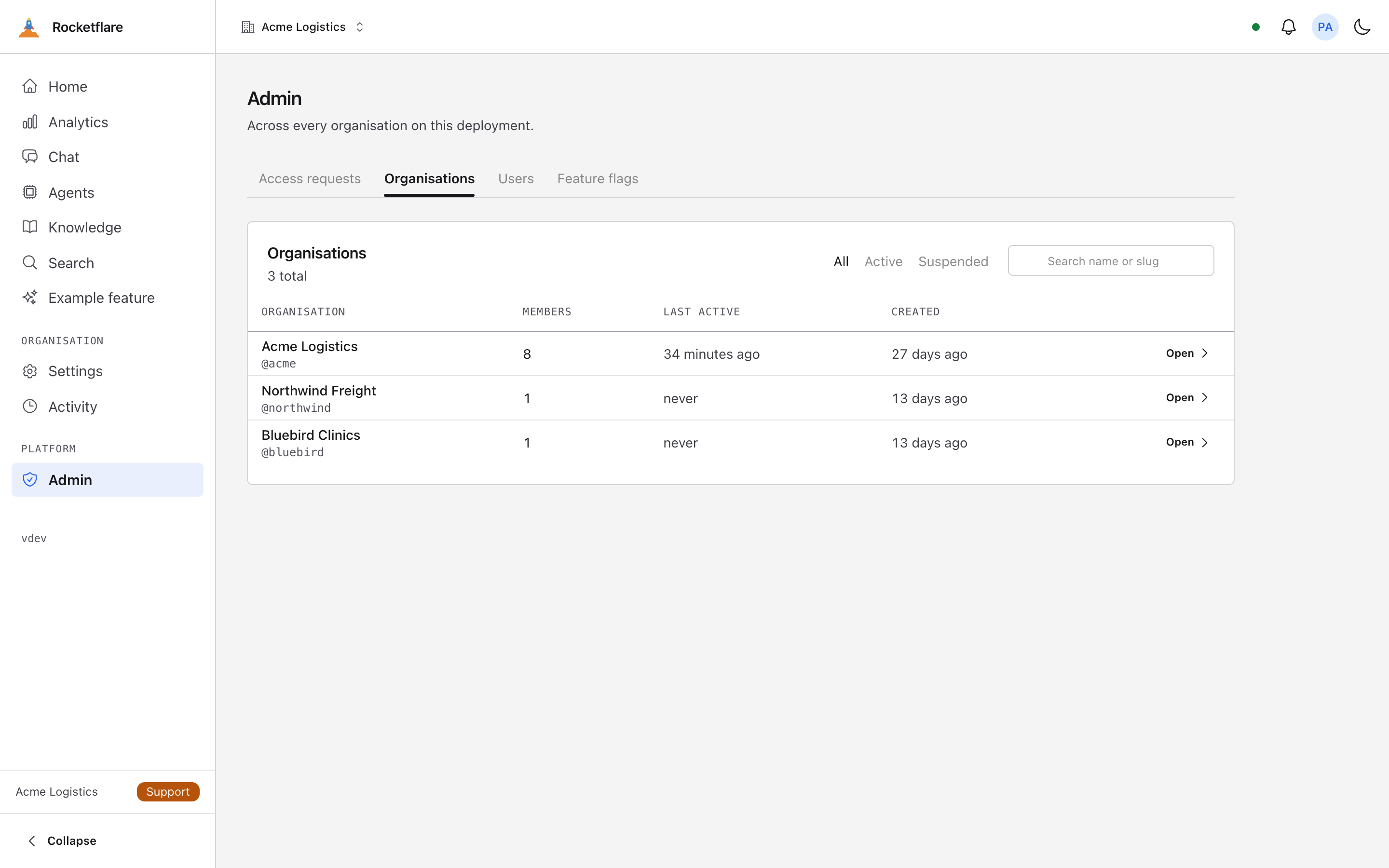
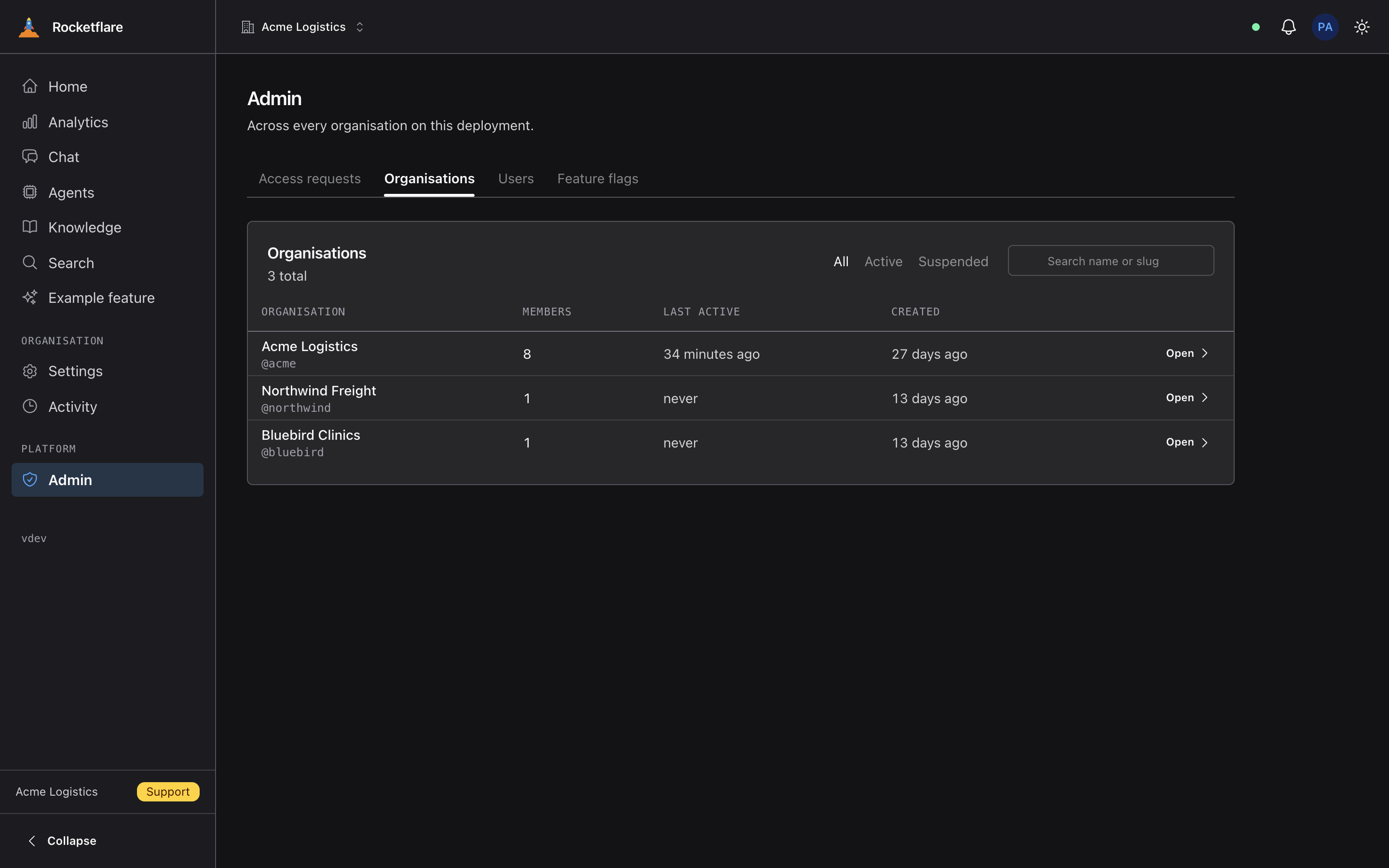
A global admin sees every organisation from one screen — the demo has three: Acme Logistics, Northwind Freight and Bluebird Clinics — plus the access requests waiting for a decision.
To help a customer, “enter” their organisation: that creates a real support membership, visible to them by design, and everything you do there is logged like any other member’s actions.
Behind it → Tenancy and access
Ship it dark, then turn it on one customer at a time
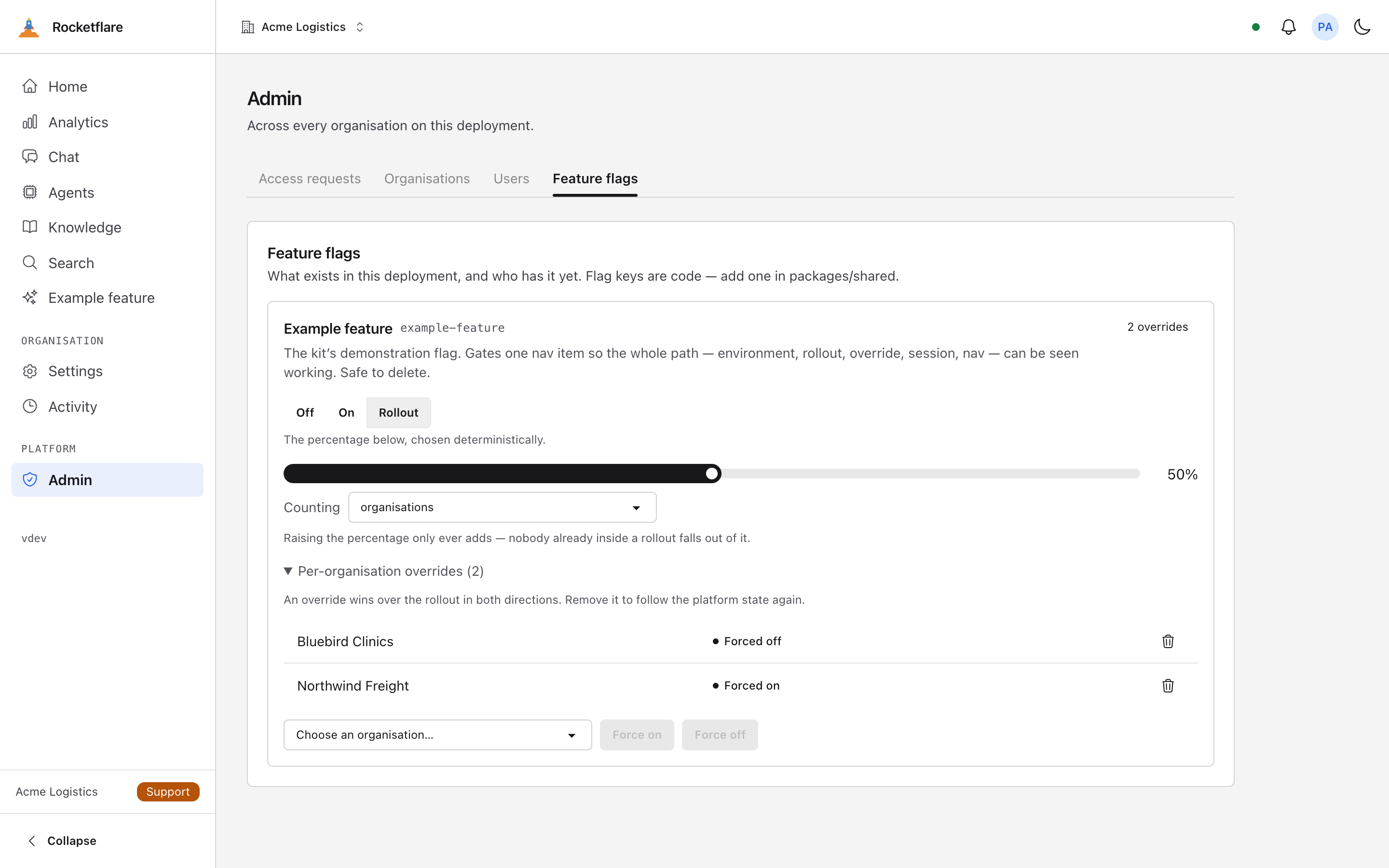
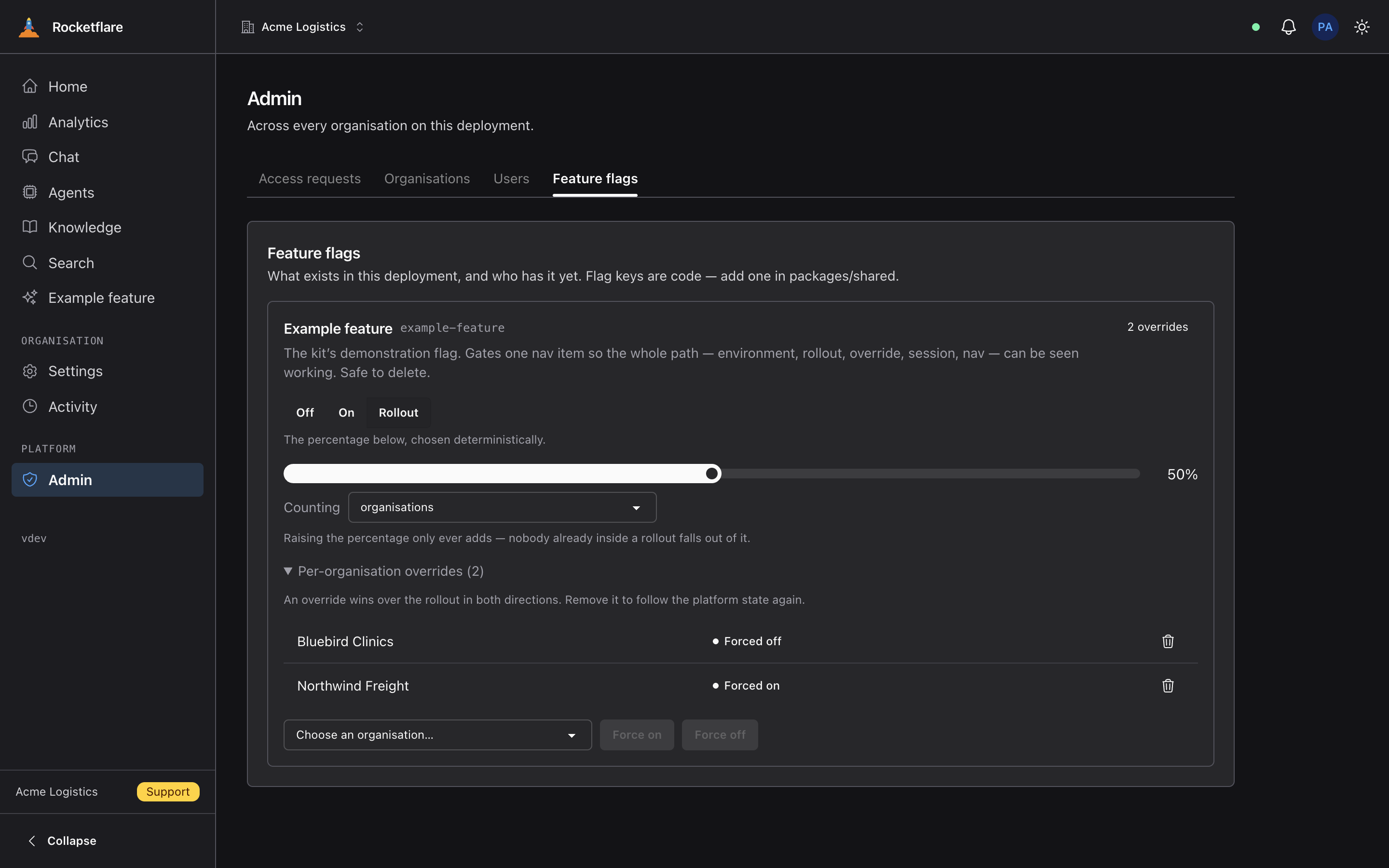
A half-built surface can go to production switched off, and be turned on later for one organisation without shipping anything. A flag is either on, off, or on for a percentage chosen by a hash — so raising that percentage only ever adds people, and nobody already inside a rollout drops out of it.
An override beats the percentage in both directions: the design partner who must have it on day one, and the customer who must never get it. Removing the override puts that organisation back on the platform setting.
Behind it → Feature flags
The same app from a terminal
The CLI logs in through your browser and ends up with an API key scoped to one organisation; from then on it calls the same routes the UI does and parses the same schemas.
--json prints only the response, so any command pipes into jq — and the key is revocable from the same settings page as every other.
pnpm cli login --server http://localhost:3001Opening the browser… signed in, key stored in ~/.rocketflare/config.jsonpnpm cli whoamiuser owner@example.testtenant Acme Logisticskey rocketflare_…pnpm cli members list --json | jq '.items[].email'"owner@example.test""admin@example.test""member@example.test"Behind it → The CLI
Plugins: what the default set installs
A capability copied in from its own repository, on top of everything above. Two ship today: analytics, which a fresh clone installs by default, and the reference plugin, which is in the kit already and exists to be deleted.
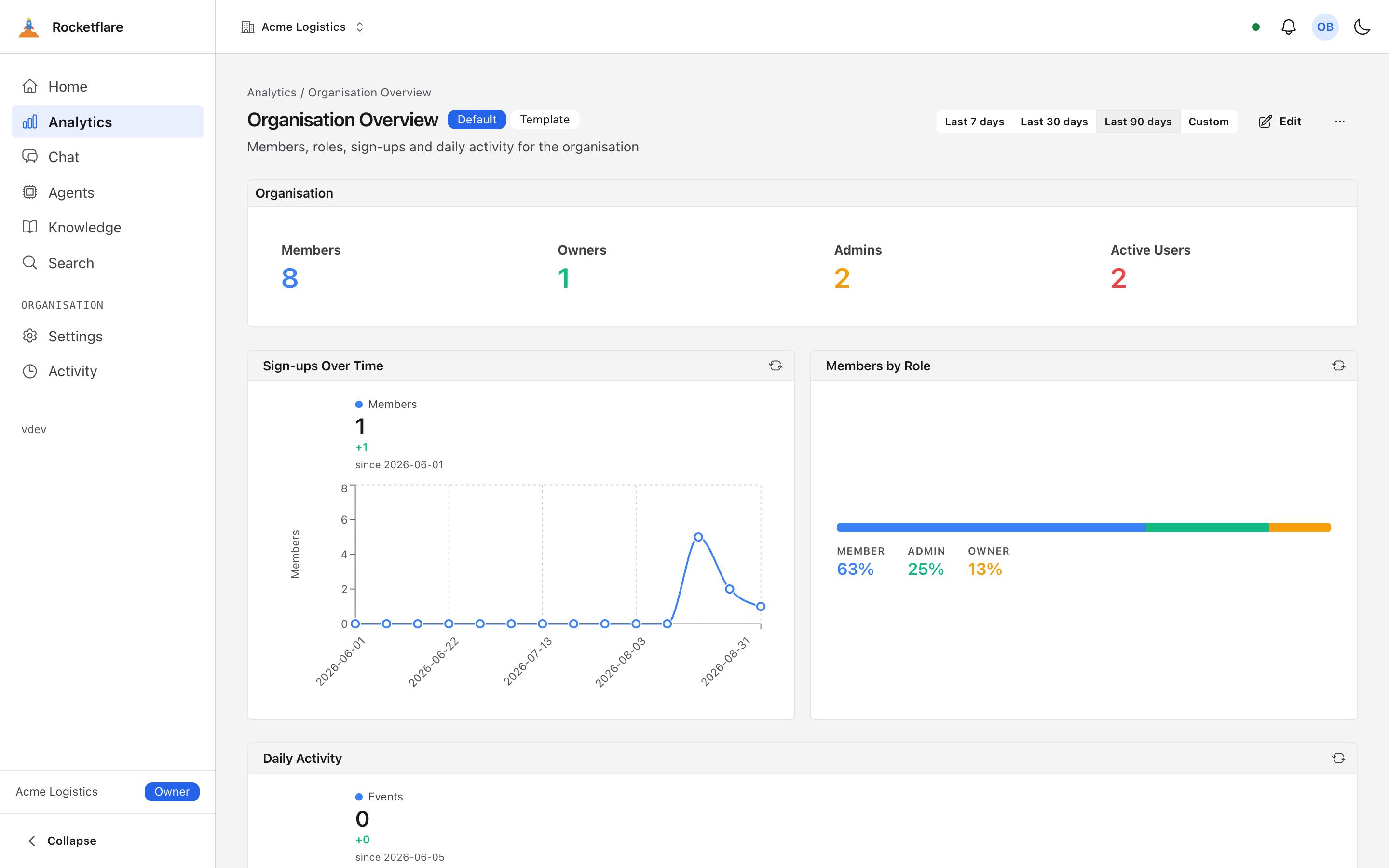
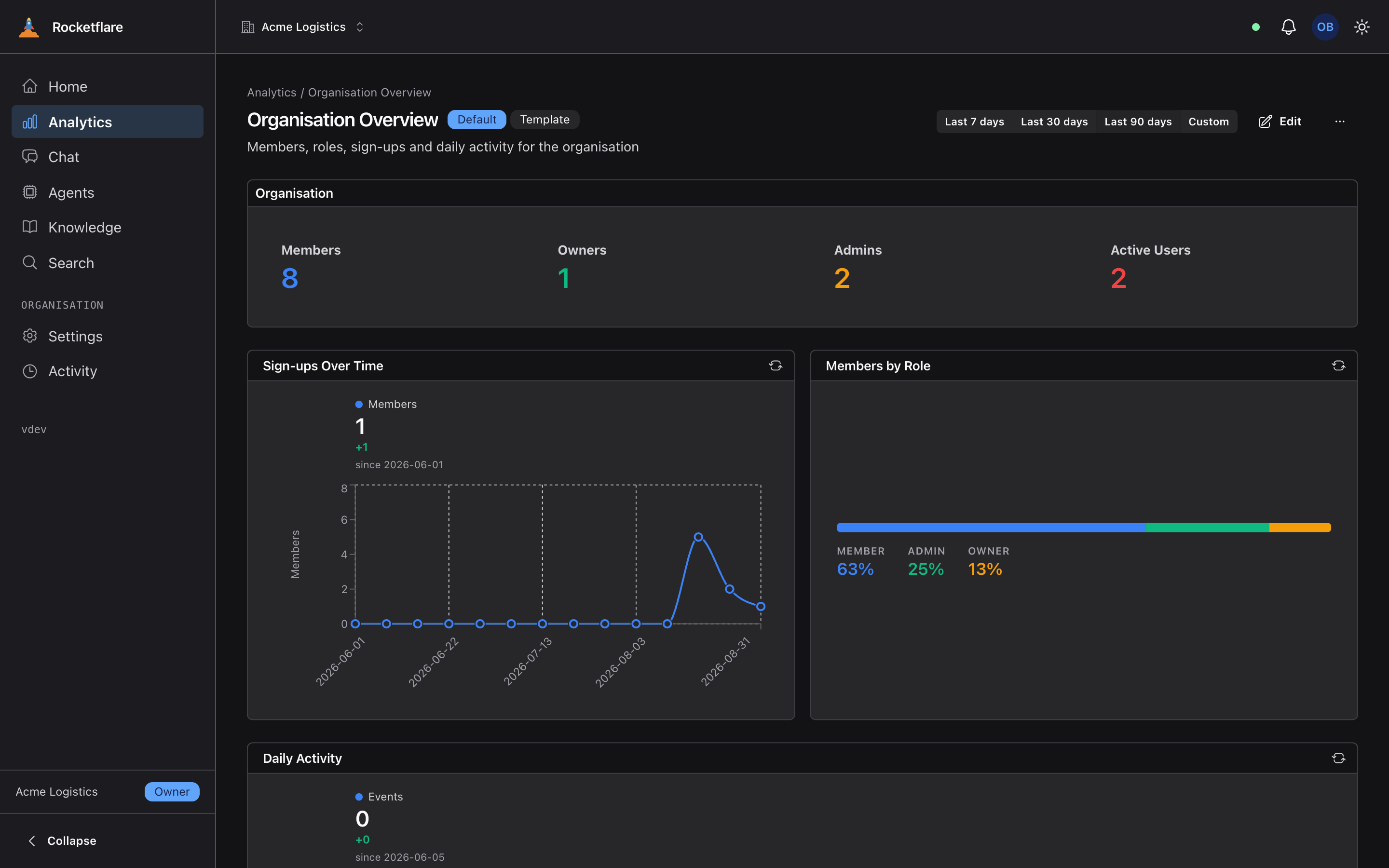
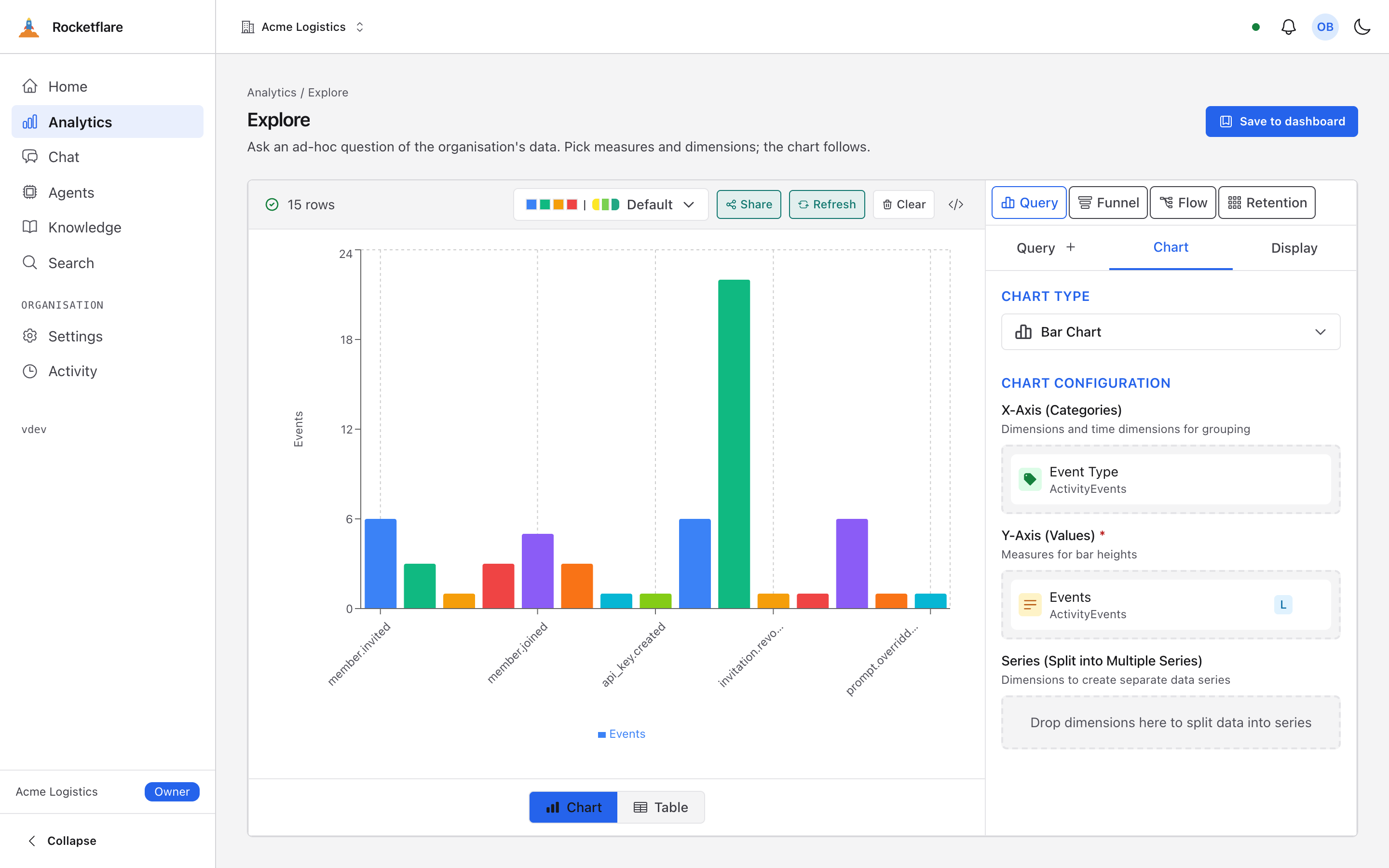
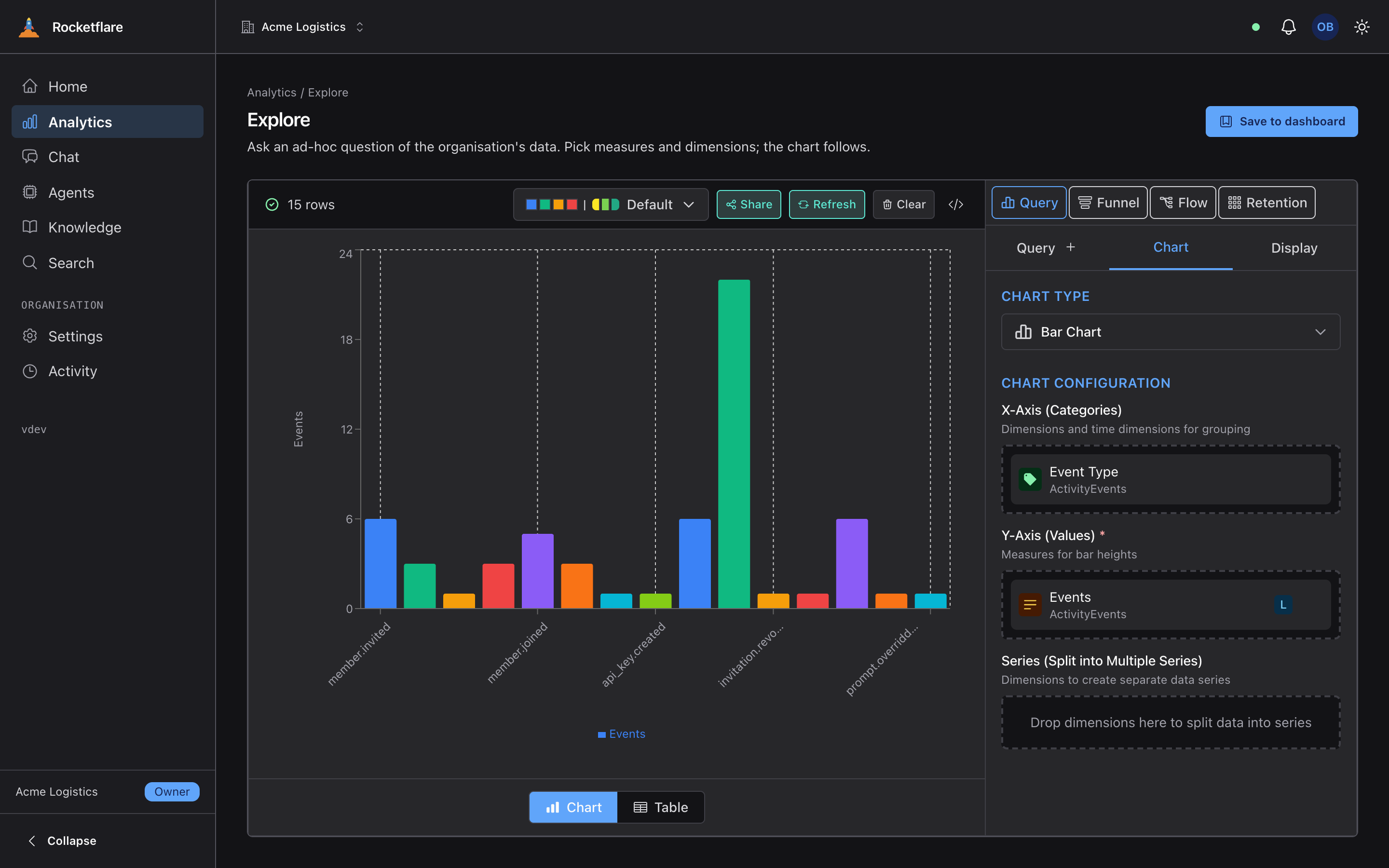
A dashboard every organisation gets on its first visit
This is the analytics plugin, and it is installed by default by the bootstrap’s plugins step — so a fresh clone has it without you asking, and pnpm bootstrap --no-plugins is how you find out what the kit looks like without it.
The seeded Organisation Overview shows members, sign-ups over time, roles and daily activity — copied from a template the first time an organisation opens the page. Explore is for your own questions: pick a measure and a breakdown and get a chart. Every number is computed inside one organisation; no organisation can see another’s.
Behind it → Analytics and dashboards
Add a capability by copying a repository in
Everything above ships in every copy. A plugin is the other way to get a capability: a git repository copied into your app — never an npm package — that lands as ordinary source, renamed into your own vocabulary on the way in.
It reaches the app through five lines and nothing else, so installing one writes them and deleting the folder removes it. The command prints the plan and stops; nothing is written until you have read it and re-run with --apply.
pnpm plugin add ../rocketflare-plugin-example-featurePlugin example-feature@0.1.0 — Example featureSource https://github.com/rocketflare-dev/rocketflare.gitHost myapp at kit 0.5.0 — records into .rocketflare.jsonNames translated into myapp's vocabulary on the way in Requirements ✔ kit 0.5.0 satisfies >=0.5.0 <1.0.0 ✔ surfaces: none required ✔ plugins: none required Files (20) apps/web/src/plugins/example-feature/ 18 packages/shared/src/plugins/example-feature/1 apps/cli/src/plugins/example-feature/ 1 Barrel lines packages/shared/src/plugins/index.ts import { exampleFeatureShared } from './example-feature/index' + SHARED_PLUGINS entry: exampleFeatureShared apps/web/src/plugins/server.ts import { exampleFeatureServer } from './example-feature' + SERVER_PLUGINS entry: exampleFeatureServer apps/web/src/plugins/ui.ts import { exampleFeatureUi } from './example-feature/ui' + UI_PLUGINS entry: exampleFeatureUi apps/web/src/plugins/schema.ts export * from './example-feature/db/schema' apps/cli/src/plugins/index.ts import { exampleFeatureCli } from './example-feature' + CLI_PLUGINS entry: exampleFeatureCli Then, by hand — nothing below is done for you 1. pnpm db:generate --name plugin-example-feature-0.1.0 → CREATE TABLE example_notes 2. pnpm gate Nothing written. Read the plan, then re-run with --apply to install.Behind it → Plugins
It works on a phone too
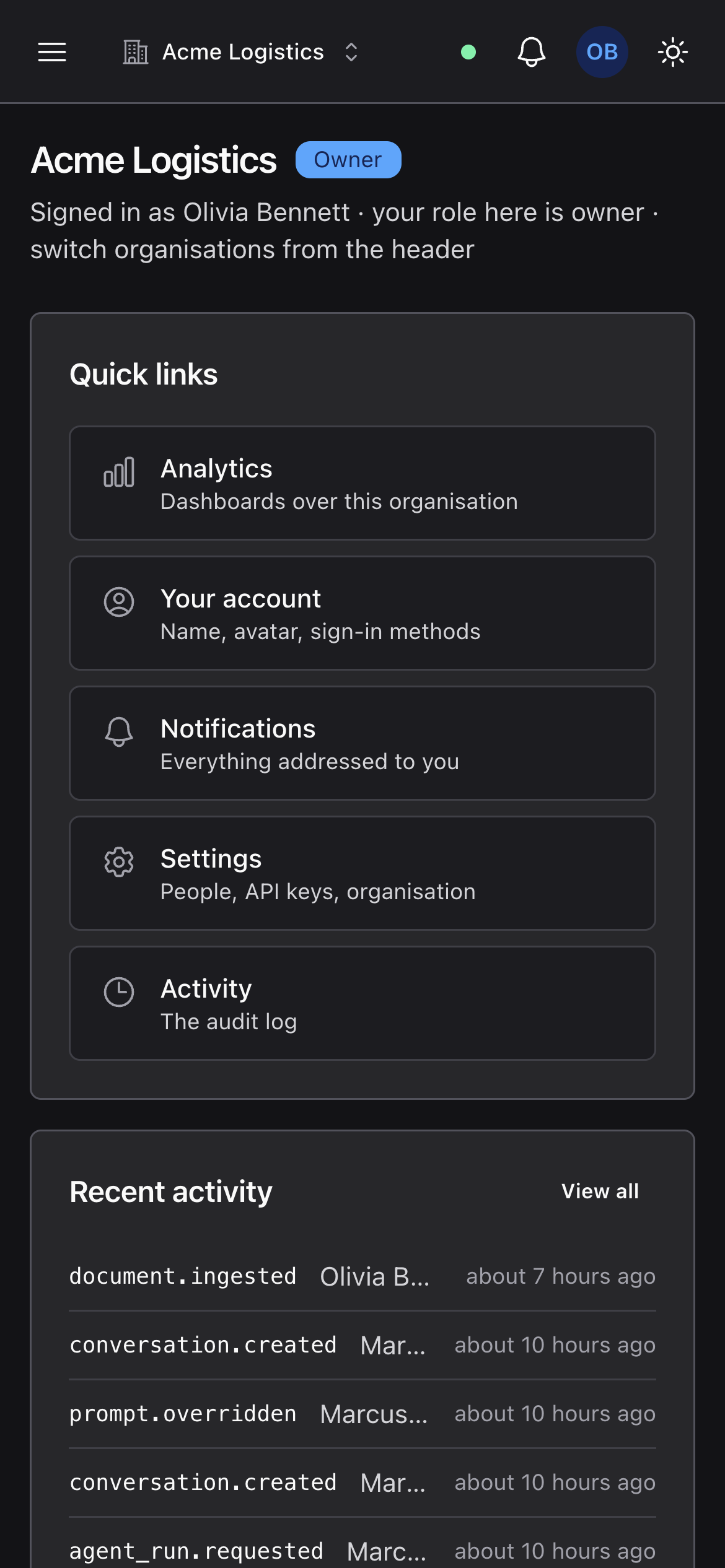
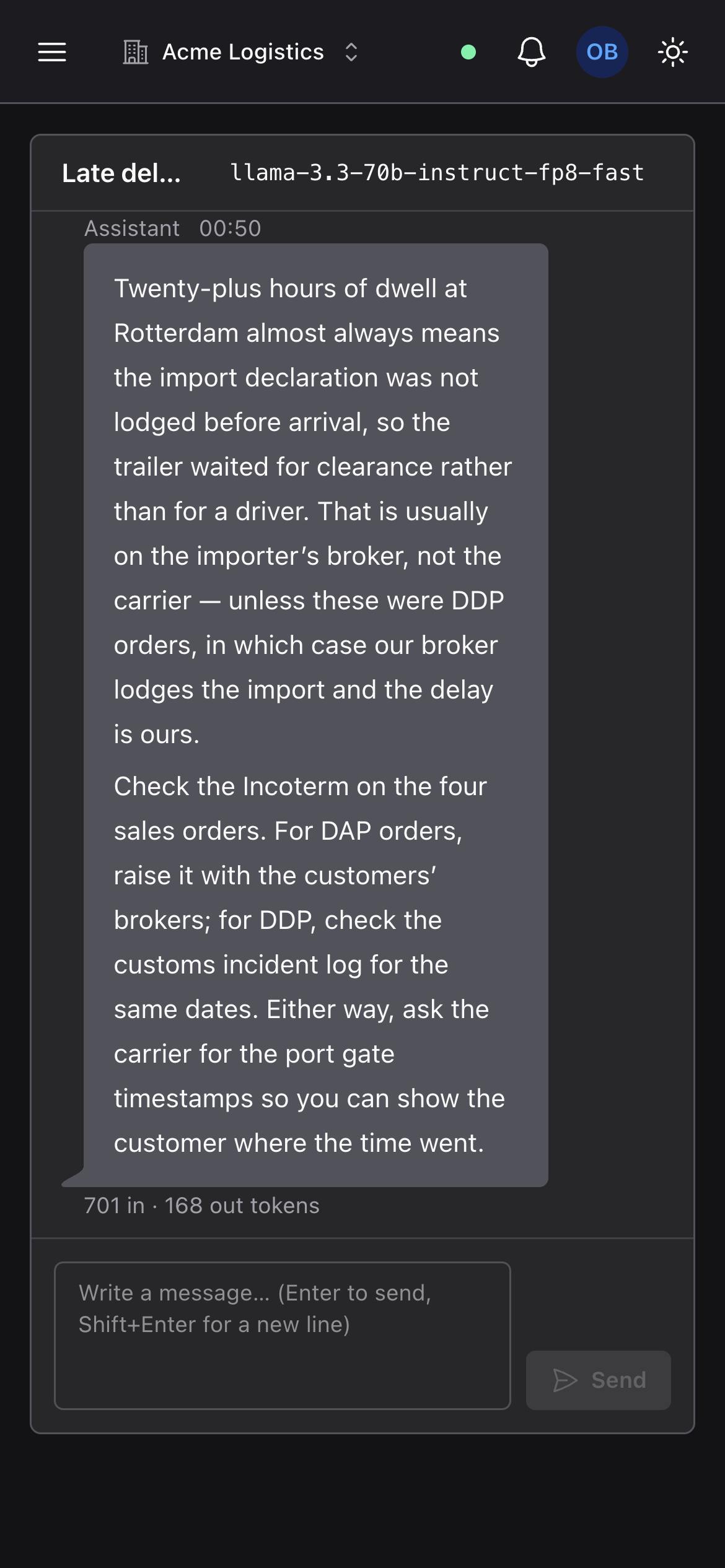
The same app at 390 pixels: home and a chat thread. Nothing here is a second front end — one UI, one set of routes.
Now run it yourself
One command on a laptop with Docker gets you to the first stop, signed in. The concept pages explain the decisions behind each one.